How to Run Multiple Apps on One VPS Without Port Collisions
The reverse proxy pattern explained for new self-hosters. Why port 80 only fits one app, and how Caddy/Traefik/nginx solve it.
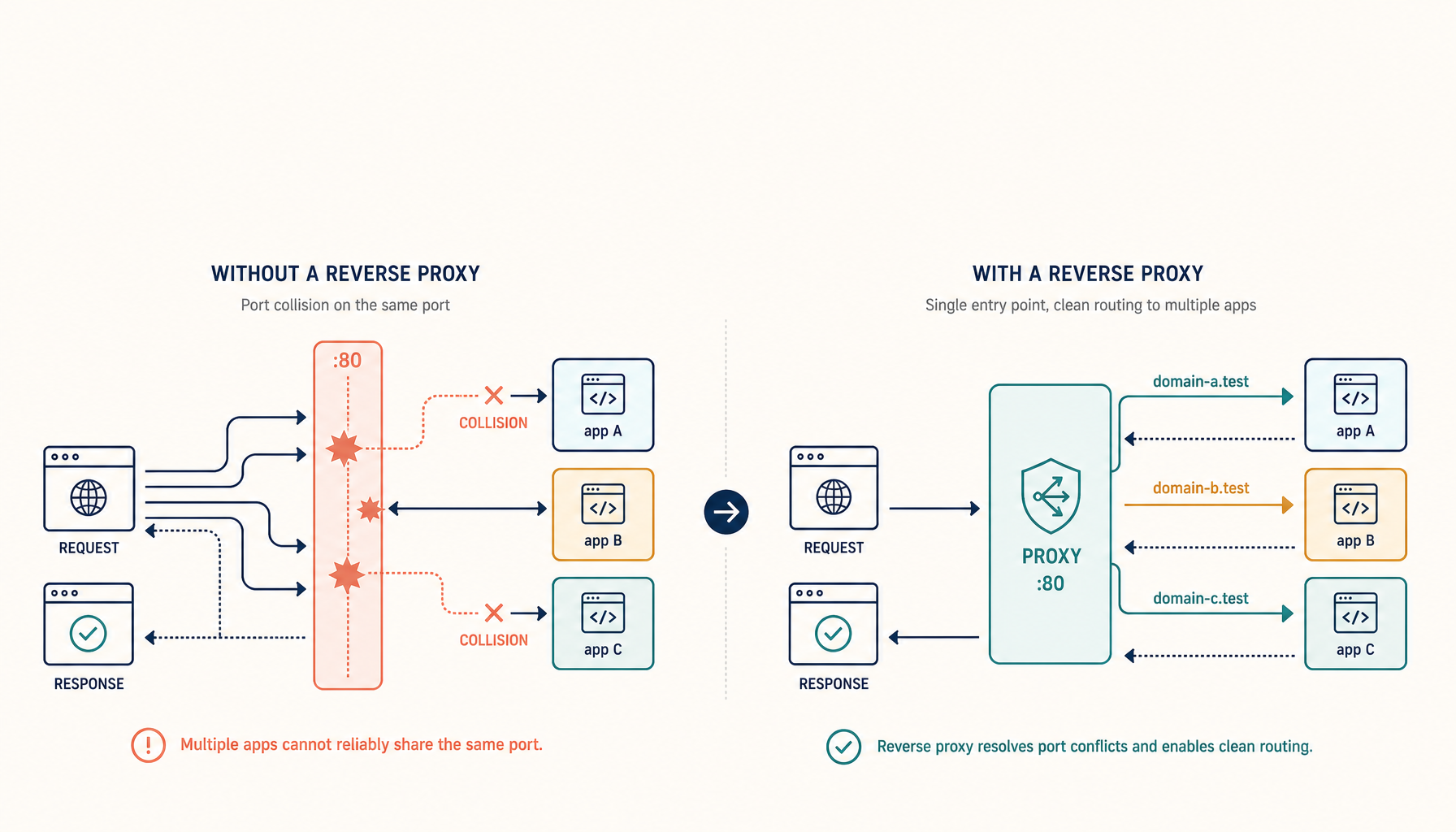
If you're new to self-hosting, the first multi-app moment is jarring. You've successfully got one app running on port 80. You install a second one. It also wants port 80. Two services can't bind the same port on the same IP. Now what?
The answer is "use a reverse proxy" — but new self-hosters often don't see how the pieces fit, and the explanations available online tend to assume they already know. Here's the explicit version.
What's actually happening
A "port" is a number, 1-65535, that an OS uses to route incoming connections to a specific process. When you run docker run -p 80:80 myapp, the kernel binds port 80 to that container. The next process that tries to bind 80 fails with "address already in use."
This is a feature, not a bug. Without it, two apps could intercept each other's traffic.
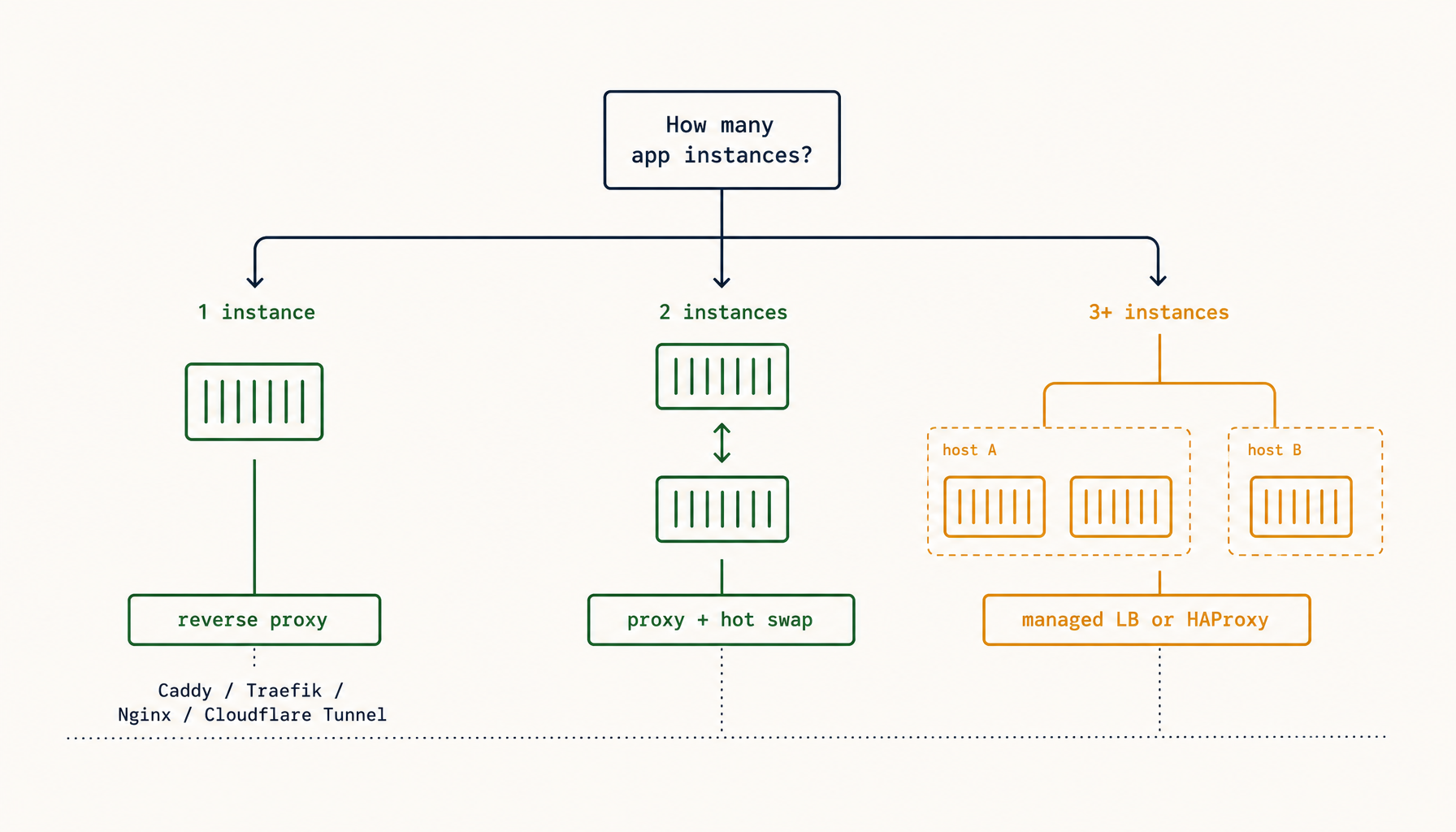
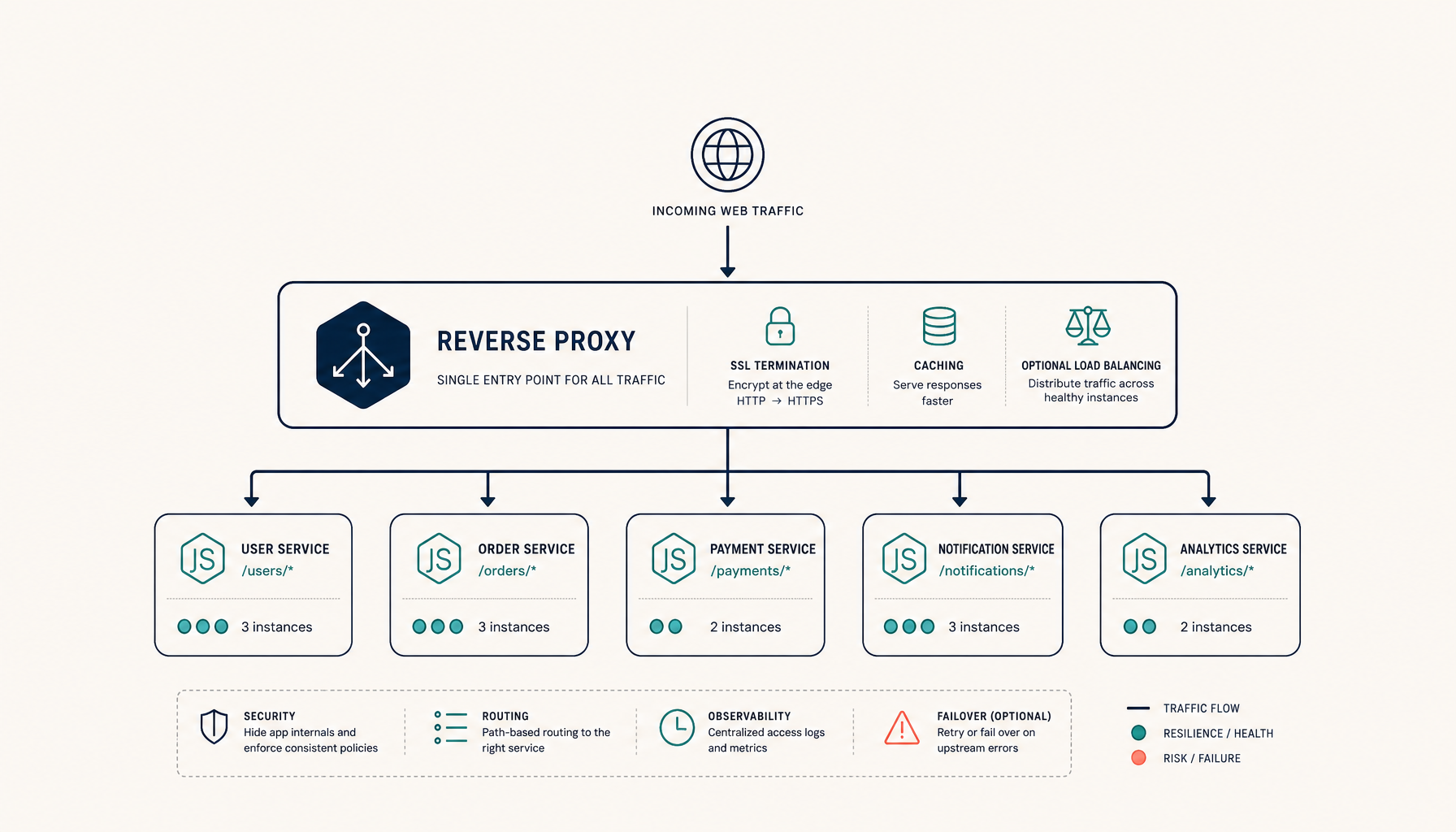
The way you run multiple HTTP services on one machine is: put one program on port 80 and 443 — the reverse proxy — and have it route incoming requests to many backends running on different (internal) ports.
The simplest mental model
Browser --→ Port 80/443 (Traefik / Caddy / nginx) --→ Backend on internal port 3001
                                                  \
                                                   →  Backend on internal port 3002
                                                  \
                                                   →  Backend on internal port 3003
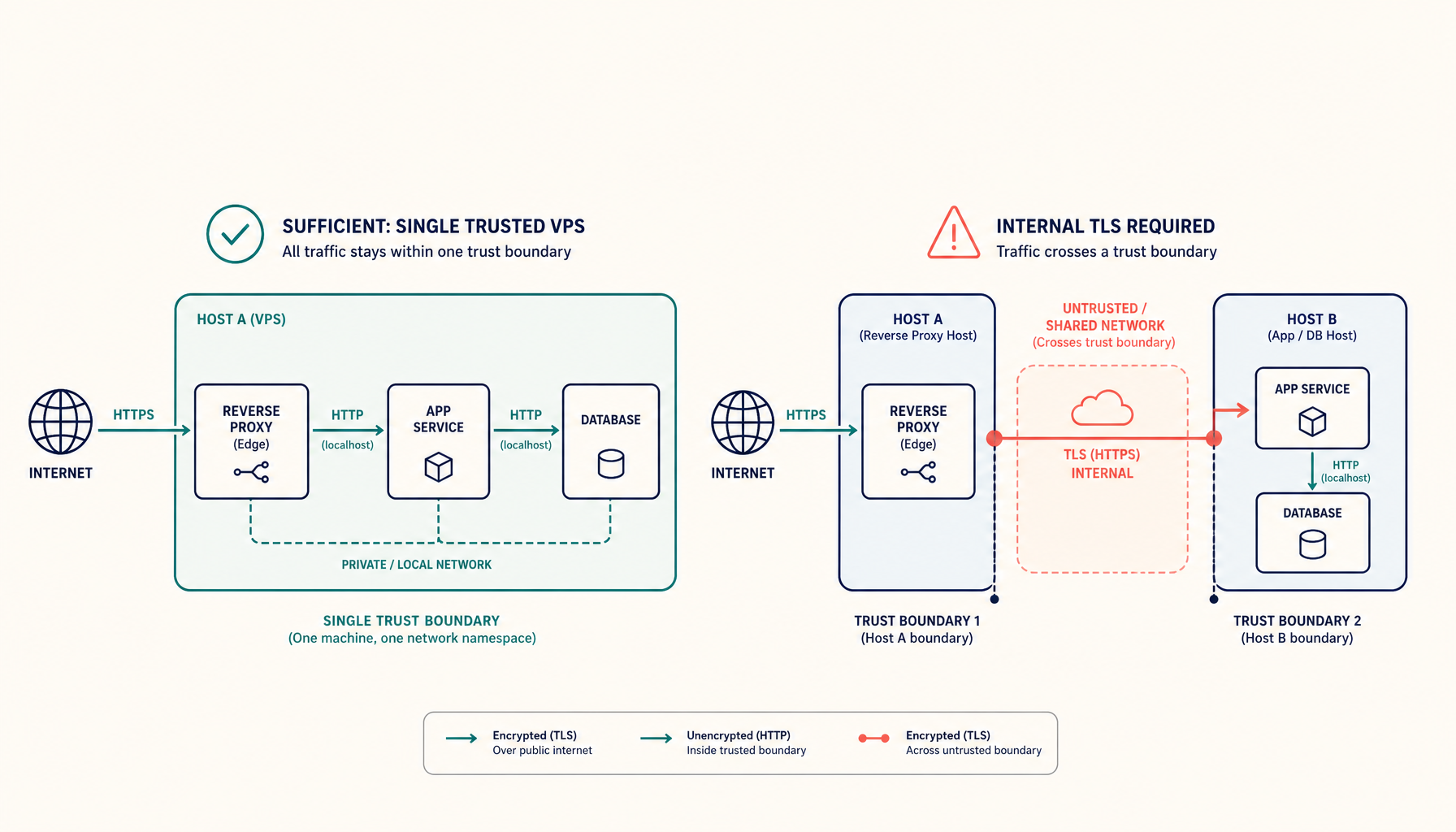
Only one process holds 80/443. Backends listen on internal ports that aren't exposed to the public internet — they only need to be reachable by the proxy.
The proxy decides which backend to route to based on the request's Host header (api.example.com → backend A, app.example.com → backend B).
The three popular choices
Caddy
Easiest learning curve. Ships with automatic HTTPS via Let's Encrypt out of the box. Configuration is a Caddyfile:
api.example.com {
    reverse_proxy localhost:3001
}

app.example.com {
    reverse_proxy localhost:3002
}
That's the whole config. SSL, redirects, and certificate renewal are automatic.
Traefik
Discovers services via Docker labels. Most-loved option for Docker-based stacks because new services configure themselves:
services:
  myapp:
    image: myapp:latest
    labels:
      - traefik.enable=true
      - traefik.http.routers.myapp.rule=Host(`app.example.com`)
      - traefik.http.routers.myapp.entrypoints=websecure
      - traefik.http.routers.myapp.tls.certresolver=letsencrypt
      - traefik.http.services.myapp.loadbalancer.server.port=3000
Add labels, redeploy, Traefik notices and starts routing. Great for many small services.
nginx
The classic choice. Manual configuration. More verbose, but battle-tested and infinitely tunable. Use it if you want maximum control or already know nginx.
server {
    listen 443 ssl http2;
    server_name api.example.com;

    ssl_certificate /etc/letsencrypt/live/example.com/fullchain.pem;
    ssl_certificate_key /etc/letsencrypt/live/example.com/privkey.pem;

    location / {
        proxy_pass http://127.0.0.1:3001;
        proxy_set_header Host $host;
        proxy_set_header X-Real-IP $remote_addr;
    }
}
A worked example
You want to host:
- A blog at
blog.example.com - An API at
api.example.com - A dashboard at
dashboard.example.com
All on one VPS.
Step 1: Pick internal ports
Assign each backend a free internal port. Convention: start at 3000 and increment.
- Blog: 3001
- API: 3002
- Dashboard: 3003
Run each service bound only to localhost:
services:
  blog:
    image: ghost:latest
    ports:
      - "127.0.0.1:3001:2368"  # only localhost can reach it
127.0.0.1:3001:2368 exposes container port 2368 (Ghost's default) to localhost on host port 3001. Outside the box can't reach it.
Step 2: Reverse proxy
Run Caddy (easiest) on 80/443:
blog.example.com {
    reverse_proxy localhost:3001
}

api.example.com {
    reverse_proxy localhost:3002
}

dashboard.example.com {
    reverse_proxy localhost:3003
}
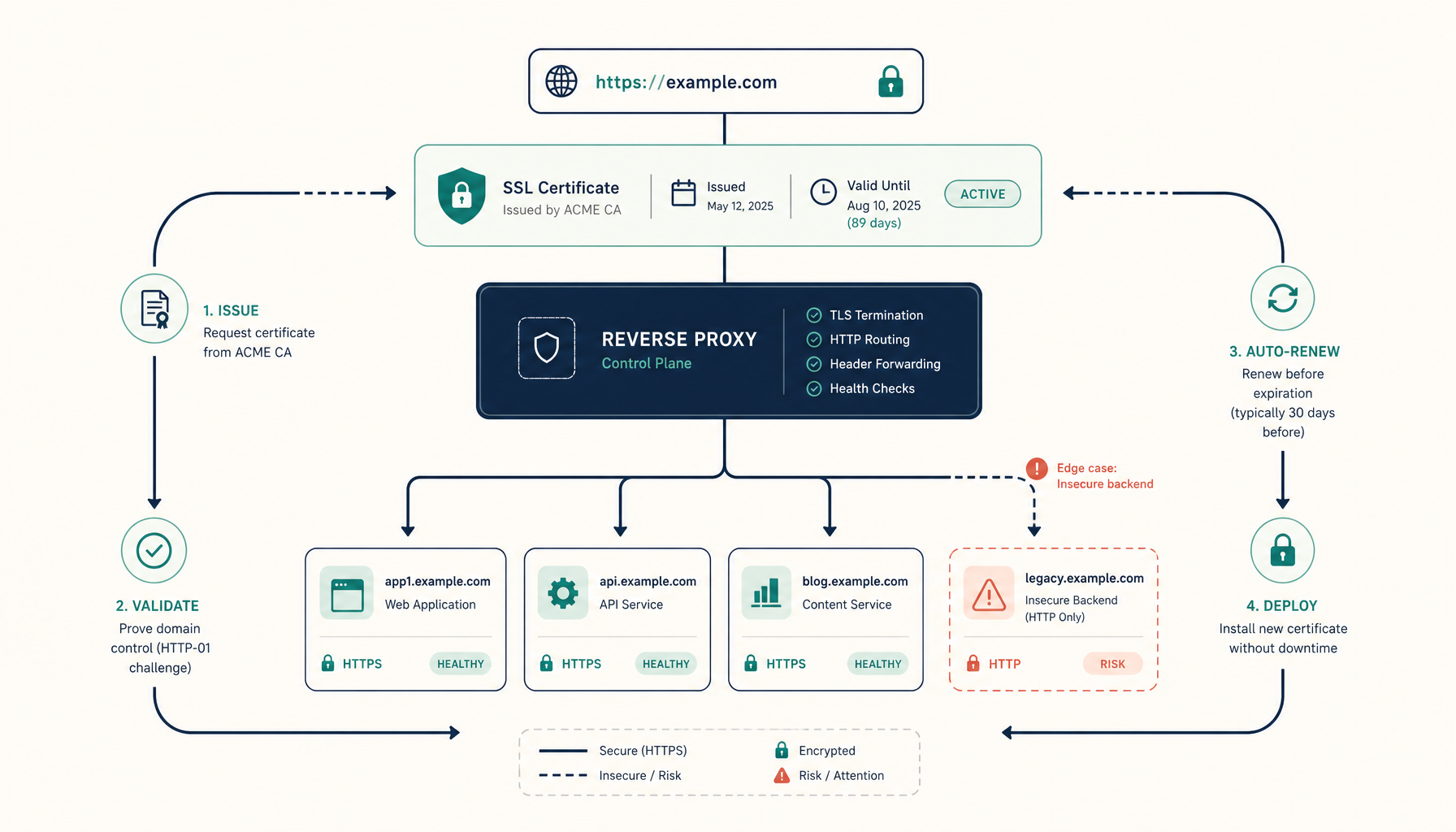
Done. Caddy gets certificates from Let's Encrypt automatically and routes by Host header.
Step 3: DNS
Point three A records (or one A + two CNAMEs) at your VPS IP:
blog.example.com.       A    1.2.3.4
api.example.com.        A    1.2.3.4
dashboard.example.com.  A    1.2.3.4
Wait for DNS propagation (a few minutes to an hour).
Step 4: Firewall
Only ports 22 (SSH) and 80/443 (HTTP/HTTPS) should be open on the public network:
sudo ufw allow 22/tcp
sudo ufw allow 80/tcp
sudo ufw allow 443/tcp
sudo ufw enable
Internal ports (3001-3003) are bound to localhost only — invisible from the public internet.
Common mistakes
"I exposed the backend port too"
If you wrote ports: - "3001:2368" instead of 127.0.0.1:3001:2368, the backend is reachable on the public IP at :3001. Not what you want.
Fix: rebind to localhost only. Force traffic through the proxy.
"I have two reverse proxies fighting over port 80"
This happens when you install Caddy and also leave nginx running. Pick one.
sudo systemctl stop nginx
sudo systemctl disable nginx
"Traefik routes to the wrong container after a redeploy"
Almost always a Docker network issue. Traefik must be on the same network as the backend container — and that network must be external: true in compose, otherwise compose recreates it with a new internal name. See the CORS-from-network-drift writeup for the deeper version of this bug.
"I get a 502 even though the backend is running"
The proxy is talking to the wrong port. Check that loadbalancer.server.port (Traefik) or proxy_pass (nginx) matches the container's internal listen port, not the host port mapping.
Internal links
- Tutorial: Set up Traefik with SSL on a VPS
- Guide: Multiple Domains on One VPS
- Guide: VPS Security Baseline
- Guide: Why Docker CORS Errors Keep Coming Back
- ServerCompass: Pre-configured multi-app VPS templates
TL;DR
One reverse proxy on 80/443. Backends on localhost-only ports. DNS points everything at the VPS. Firewall blocks everything except 22/80/443. That's the entire pattern. Once you've set it up once, adding a fourth or fifth app is trivial — and the port-collision anxiety goes away for good.
From across the StoicSoft network
Hand-curated reads on the same topic from sister sites in the StoicSoft family.
 StoicVPS8 min read
How to Read a VPS Provider's Status Page (And What to Ignore)
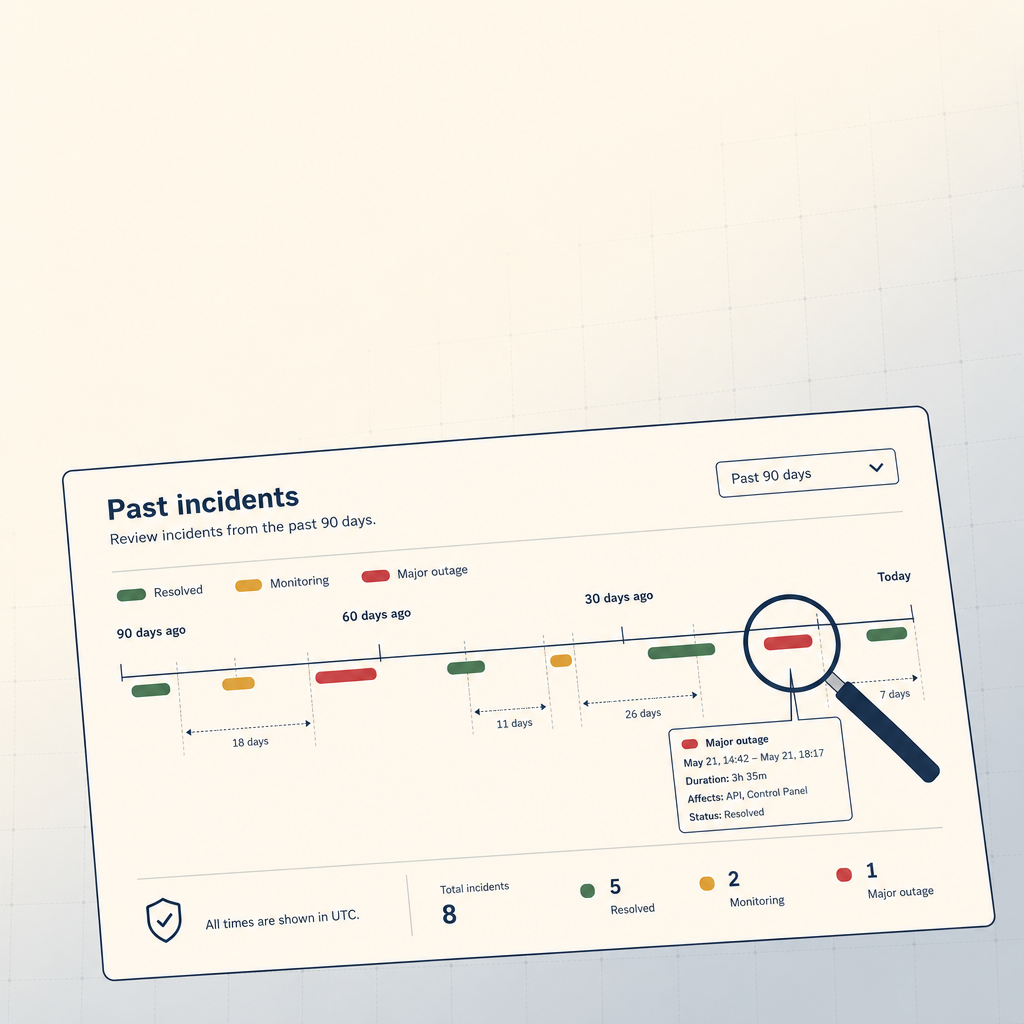
The status page is the single most underused signal in VPS provider evaluation. The 90-day skim, what to look for, and what to weight elsewhere.
Read on stoicvps.com Deploy Handbook
Coolify vs Dokploy: Self-Hosted PaaS Comparison
Both let you run your own Heroku. Which one should you pick for your VPS?
Read on stoicvps.com/handbook