Multiple Domains on a Single VPS: Complete Guide
Host multiple websites and applications on one VPS using Nginx virtual hosts and Docker containers with proper SSL for each domain.
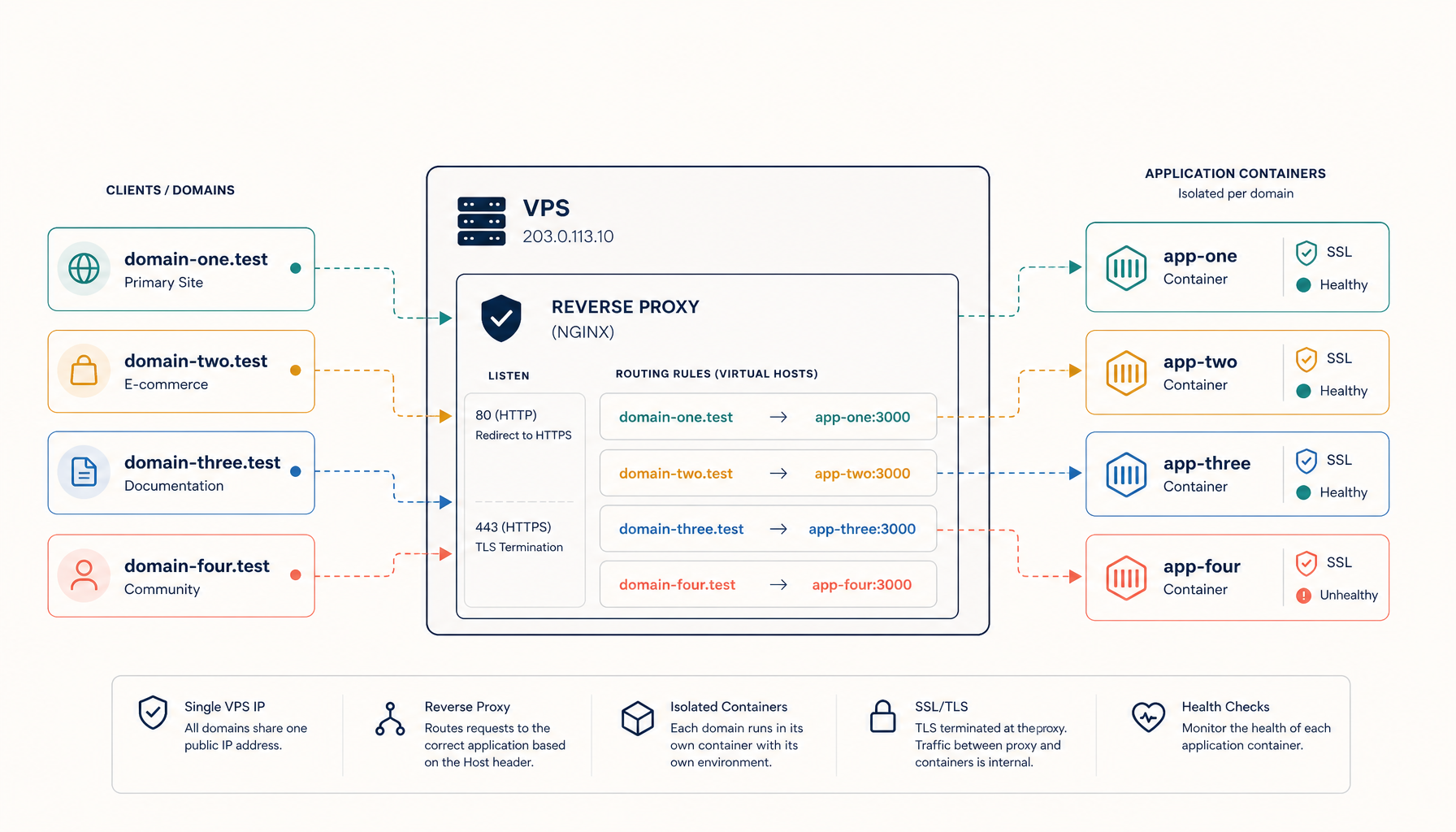
Run multiple websites and applications on a single VPS. This guide covers both the traditional Nginx approach and the Docker/Traefik approach for containerized apps.
Overview
One VPS can host dozens of websites. The key is a reverse proxy that routes requests based on the domain name. You have two main options:
- Nginx virtual hosts - Best for static sites and traditional apps
- Traefik with Docker - Best for containerized applications
This guide covers both approaches.
DNS setup for all domains
Before configuring your server, point all your domains to your VPS IP.
For each domain, create an A record:
| Type | Name | Value |
|---|---|---|
| A | @ | YOUR_VPS_IP |
| A | www | YOUR_VPS_IP |
Wait for DNS propagation (usually 5-30 minutes, can take up to 48 hours).
Verify with:
dig +short yourdomain.com
dig +short anotherdomain.com
Both should return your VPS IP.
Option 1: Nginx virtual hosts
This is the traditional approach. Good for static sites, PHP apps, and proxying to local services.
Install Nginx
sudo apt update
sudo apt install nginx -y
Create directory structure
sudo mkdir -p /var/www/site1.com/html
sudo mkdir -p /var/www/site2.com/html
sudo mkdir -p /var/www/site3.com/html
Set permissions:
sudo chown -R $USER:$USER /var/www/site1.com/html
sudo chown -R $USER:$USER /var/www/site2.com/html
sudo chown -R $USER:$USER /var/www/site3.com/html
Create site configurations
Site 1 - Static website:
sudo nano /etc/nginx/sites-available/site1.com
server {
    listen 80;
    server_name site1.com www.site1.com;
    root /var/www/site1.com/html;
    index index.html;

    location / {
        try_files $uri $uri/ =404;
    }
}
Site 2 - Node.js application:
sudo nano /etc/nginx/sites-available/site2.com
server {
    listen 80;
    server_name site2.com www.site2.com;

    location / {
        proxy_pass http://127.0.0.1:3000;
        proxy_http_version 1.1;
        proxy_set_header Upgrade $http_upgrade;
        proxy_set_header Connection 'upgrade';
        proxy_set_header Host $host;
        proxy_set_header X-Real-IP $remote_addr;
        proxy_set_header X-Forwarded-For $proxy_add_x_forwarded_for;
        proxy_set_header X-Forwarded-Proto $scheme;
        proxy_cache_bypass $http_upgrade;
    }
}
Site 3 - Another Node.js application on a different port:
sudo nano /etc/nginx/sites-available/site3.com
server {
    listen 80;
    server_name site3.com www.site3.com;

    location / {
        proxy_pass http://127.0.0.1:3001;
        proxy_http_version 1.1;
        proxy_set_header Upgrade $http_upgrade;
        proxy_set_header Connection 'upgrade';
        proxy_set_header Host $host;
        proxy_set_header X-Real-IP $remote_addr;
        proxy_set_header X-Forwarded-For $proxy_add_x_forwarded_for;
        proxy_set_header X-Forwarded-Proto $scheme;
        proxy_cache_bypass $http_upgrade;
    }
}
Enable all sites
sudo ln -s /etc/nginx/sites-available/site1.com /etc/nginx/sites-enabled/
sudo ln -s /etc/nginx/sites-available/site2.com /etc/nginx/sites-enabled/
sudo ln -s /etc/nginx/sites-available/site3.com /etc/nginx/sites-enabled/
Remove the default site:
sudo rm /etc/nginx/sites-enabled/default
Test and reload:
sudo nginx -t
sudo systemctl reload nginx
Add SSL to all domains
Install Certbot:
sudo apt install certbot python3-certbot-nginx -y
Get certificates for all domains at once:
sudo certbot --nginx -d site1.com -d www.site1.com -d site2.com -d www.site2.com -d site3.com -d www.site3.com
Or one at a time:
sudo certbot --nginx -d site1.com -d www.site1.com
sudo certbot --nginx -d site2.com -d www.site2.com
sudo certbot --nginx -d site3.com -d www.site3.com
Certbot will automatically update your Nginx configs to use HTTPS.
Option 2: Docker with Traefik
This is the modern approach for containerized applications. Traefik automatically discovers containers and routes traffic based on labels.
Install Docker
curl -fsSL https://get.docker.com | sh
sudo usermod -aG docker $USER
newgrp docker
Create the Traefik network
docker network create traefik-public
Create Traefik configuration
mkdir -p ~/traefik
cd ~/traefik
Create docker-compose.yml:
services:
  traefik:
    image: traefik:v2.11
    command:
      - --api.dashboard=true
      - --providers.docker=true
      - --providers.docker.exposedbydefault=false
      - --providers.docker.network=traefik-public
      - --entrypoints.web.address=:80
      - --entrypoints.websecure.address=:443
      - --entrypoints.web.http.redirections.entrypoint.to=websecure
      - --entrypoints.web.http.redirections.entrypoint.scheme=https
      - --certificatesresolvers.letsencrypt.acme.tlschallenge=true
      - [email protected]
      - --certificatesresolvers.letsencrypt.acme.storage=/letsencrypt/acme.json
    ports:
      - 80:80
      - 443:443
    volumes:
      - /var/run/docker.sock:/var/run/docker.sock:ro
      - letsencrypt:/letsencrypt
    networks:
      - traefik-public
    restart: unless-stopped
    labels:
      - traefik.enable=true
      - traefik.http.routers.dashboard.rule=Host(`traefik.yourdomain.com`)
      - traefik.http.routers.dashboard.service=api@internal
      - traefik.http.routers.dashboard.tls=true
      - traefik.http.routers.dashboard.tls.certresolver=letsencrypt
      - traefik.http.routers.dashboard.middlewares=auth
      - traefik.http.middlewares.auth.basicauth.users=admin:$$apr1$$xyz...

volumes:
  letsencrypt:

networks:
  traefik-public:
    external: true
Generate a password hash for the dashboard:
sudo apt install apache2-utils -y
htpasswd -nb admin your-secure-password
Replace the auth.basicauth.users value with the output.
Start Traefik:
docker compose up -d
Deploy applications with automatic SSL
App 1 - Next.js on site1.com:
mkdir -p ~/apps/site1
cd ~/apps/site1
Create docker-compose.yml:
services:
  app:
    build: .
    restart: unless-stopped
    networks:
      - traefik-public
    labels:
      - traefik.enable=true
      - traefik.http.routers.site1.rule=Host(`site1.com`) || Host(`www.site1.com`)
      - traefik.http.routers.site1.entrypoints=websecure
      - traefik.http.routers.site1.tls=true
      - traefik.http.routers.site1.tls.certresolver=letsencrypt
      - traefik.http.services.site1.loadbalancer.server.port=3000

networks:
  traefik-public:
    external: true
App 2 - Python Flask on site2.com:
mkdir -p ~/apps/site2
cd ~/apps/site2
Create docker-compose.yml:
services:
  app:
    build: .
    restart: unless-stopped
    networks:
      - traefik-public
    labels:
      - traefik.enable=true
      - traefik.http.routers.site2.rule=Host(`site2.com`) || Host(`www.site2.com`)
      - traefik.http.routers.site2.entrypoints=websecure
      - traefik.http.routers.site2.tls=true
      - traefik.http.routers.site2.tls.certresolver=letsencrypt
      - traefik.http.services.site2.loadbalancer.server.port=5000

networks:
  traefik-public:
    external: true
App 3 - Static site on site3.com:
mkdir -p ~/apps/site3
cd ~/apps/site3
Create docker-compose.yml:
services:
  app:
    image: nginx:alpine
    restart: unless-stopped
    volumes:
      - ./html:/usr/share/nginx/html:ro
    networks:
      - traefik-public
    labels:
      - traefik.enable=true
      - traefik.http.routers.site3.rule=Host(`site3.com`) || Host(`www.site3.com`)
      - traefik.http.routers.site3.entrypoints=websecure
      - traefik.http.routers.site3.tls=true
      - traefik.http.routers.site3.tls.certresolver=letsencrypt
      - traefik.http.services.site3.loadbalancer.server.port=80

networks:
  traefik-public:
    external: true
Deploy each app:
cd ~/apps/site1 && docker compose up -d
cd ~/apps/site2 && docker compose up -d
cd ~/apps/site3 && docker compose up -d
Traefik automatically detects the containers and configures routing and SSL.
Managing multiple sites
List all running containers
docker ps --format "table {{.Names}}\t{{.Status}}\t{{.Ports}}"
View logs for a specific site
cd ~/apps/site1
docker compose logs -f
Update a specific site
cd ~/apps/site1
git pull
docker compose up -d --build
Resource usage
Monitor memory and CPU per container:
docker stats
Check Traefik routing
View the Traefik dashboard at https://traefik.yourdomain.com or check the API:
curl -s http://localhost:8080/api/http/routers | jq
Subdomain routing
You can also route subdomains to different apps.
With Traefik labels:
labels:
  - traefik.http.routers.api.rule=Host(`api.yourdomain.com`)
  - traefik.http.routers.app.rule=Host(`app.yourdomain.com`)
  - traefik.http.routers.blog.rule=Host(`blog.yourdomain.com`)
With Nginx:
server {
    server_name api.yourdomain.com;
    location / {
        proxy_pass http://127.0.0.1:3001;
    }
}

server {
    server_name app.yourdomain.com;
    location / {
        proxy_pass http://127.0.0.1:3002;
    }
}
Resource planning
How many sites can you run on one VPS?
| VPS Size | Static Sites | Node.js Apps | Full-stack Apps |
|---|---|---|---|
| 1GB RAM | 10-20 | 2-3 | 1 |
| 2GB RAM | 20-50 | 4-6 | 2-3 |
| 4GB RAM | 50-100 | 8-12 | 4-6 |
| 8GB RAM | 100+ | 15-20 | 8-10 |
These are estimates. Actual capacity depends on traffic and app complexity.
Troubleshooting
Domain shows wrong site
Check the server_name (Nginx) or Host rule (Traefik) is unique for each site.
For Nginx:
grep -r "server_name" /etc/nginx/sites-enabled/
For Traefik:
docker inspect <container> | grep -A5 "Labels"
SSL certificate not issued
- Verify DNS is pointing to your VPS
- Check that ports 80 and 443 are open
- For Traefik, check logs:
docker logs traefik 2>&1 | grep -i acme
Container not accessible
Ensure the container is on the traefik-public network:
docker network inspect traefik-public
Port conflicts
If running apps directly (not in Docker), ensure each app uses a unique port:
sudo ss -tlnp | grep LISTEN
Nginx config syntax error
Test before reloading:
sudo nginx -t
Check the specific error and line number in the output.
Where to go next
Tutorials:
Comparisons:
ServerCompass:
From across the StoicSoft network
Hand-curated reads on the same topic from sister sites in the StoicSoft family.