Nginx Reverse Proxy for Node.js: Complete VPS Guide
Set up Nginx as a reverse proxy for Node.js applications with SSL, load balancing, and production-ready configuration.
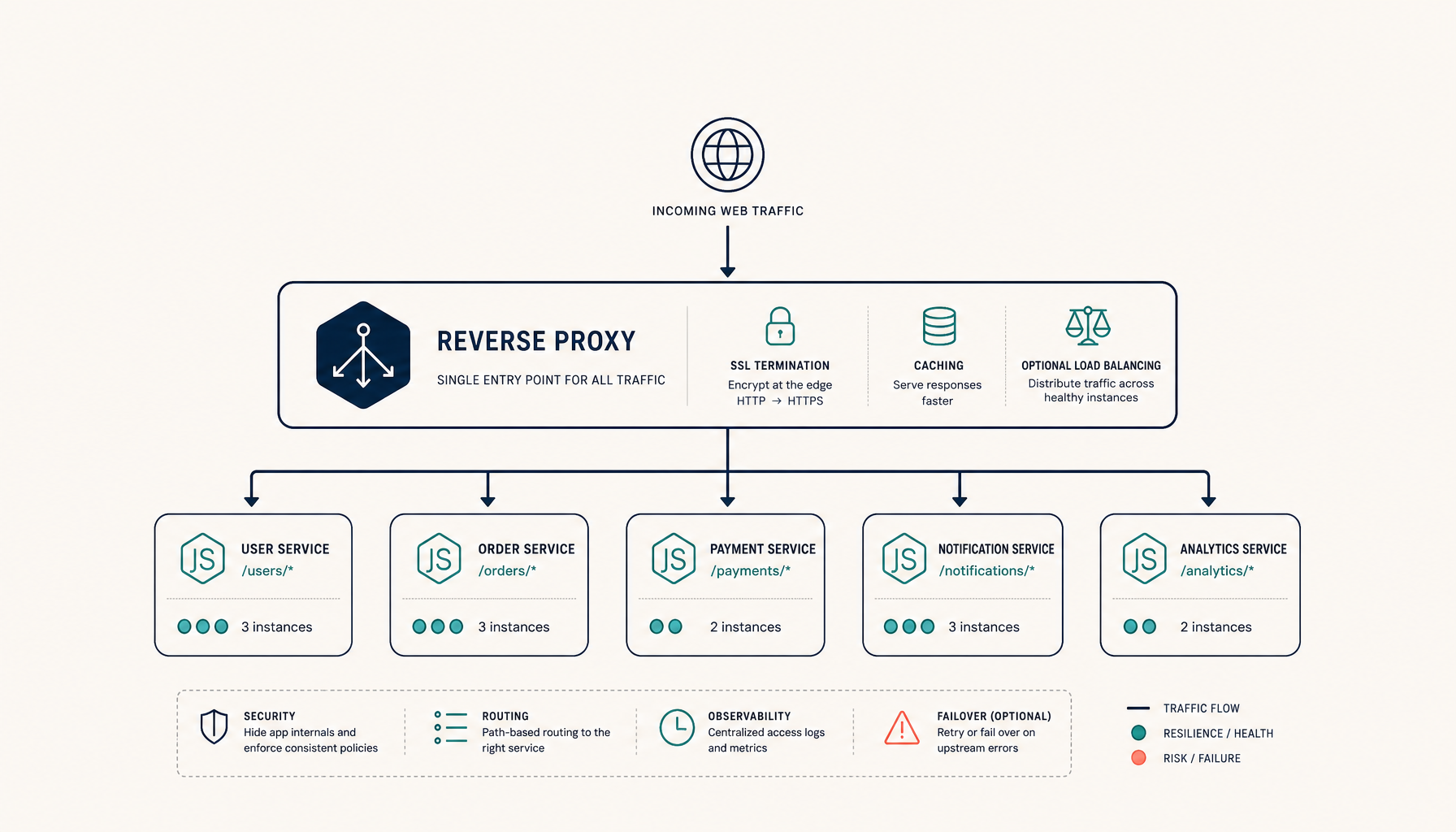
A practical guide to setting up Nginx as a reverse proxy for Node.js applications on a VPS. This is the foundation for hosting multiple apps on one server with proper SSL.
Overview
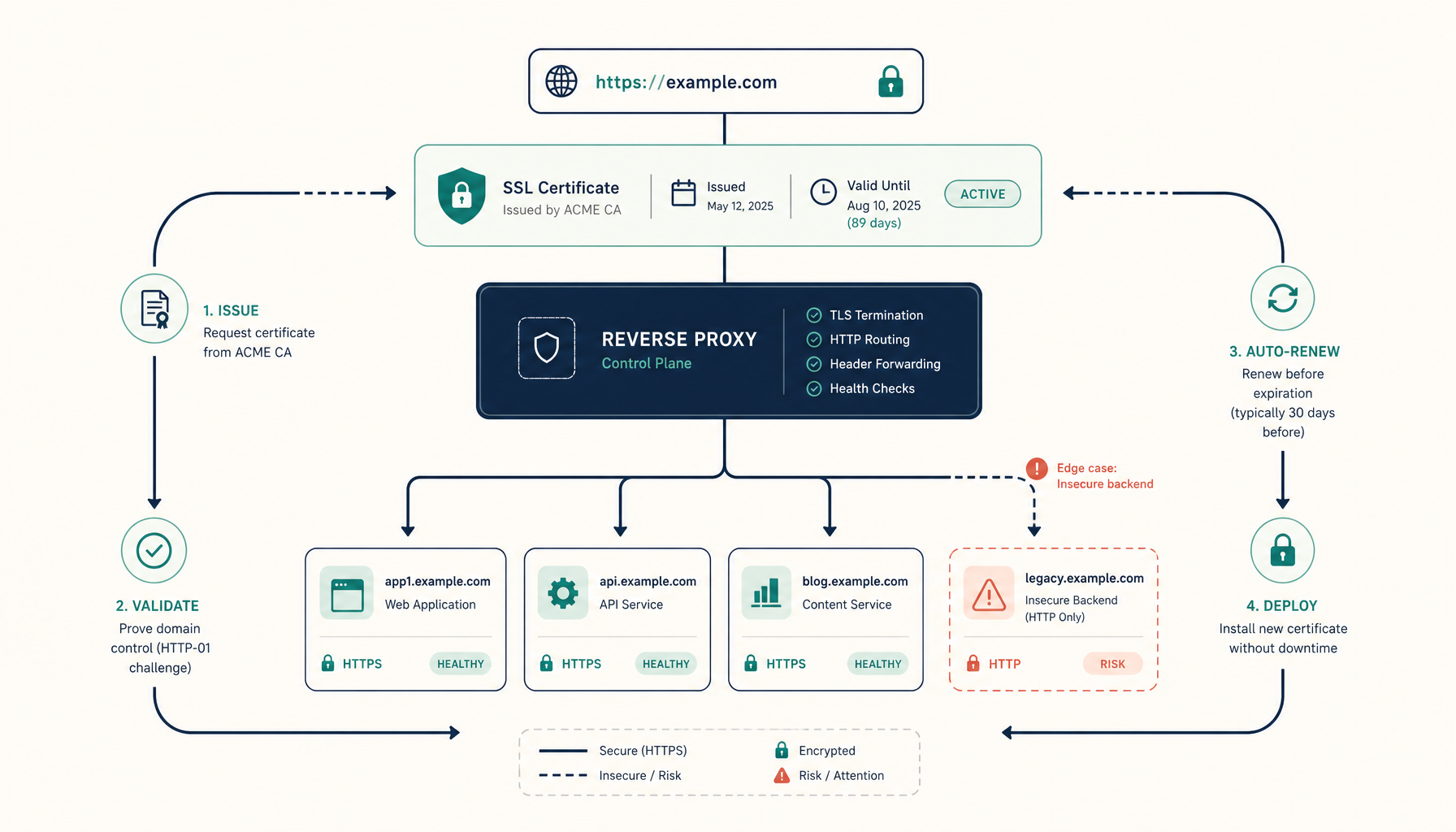
Nginx sits in front of your Node.js app. It handles:
- SSL termination (HTTPS)
- Static file serving
- Request buffering
- Load balancing (if you scale later)
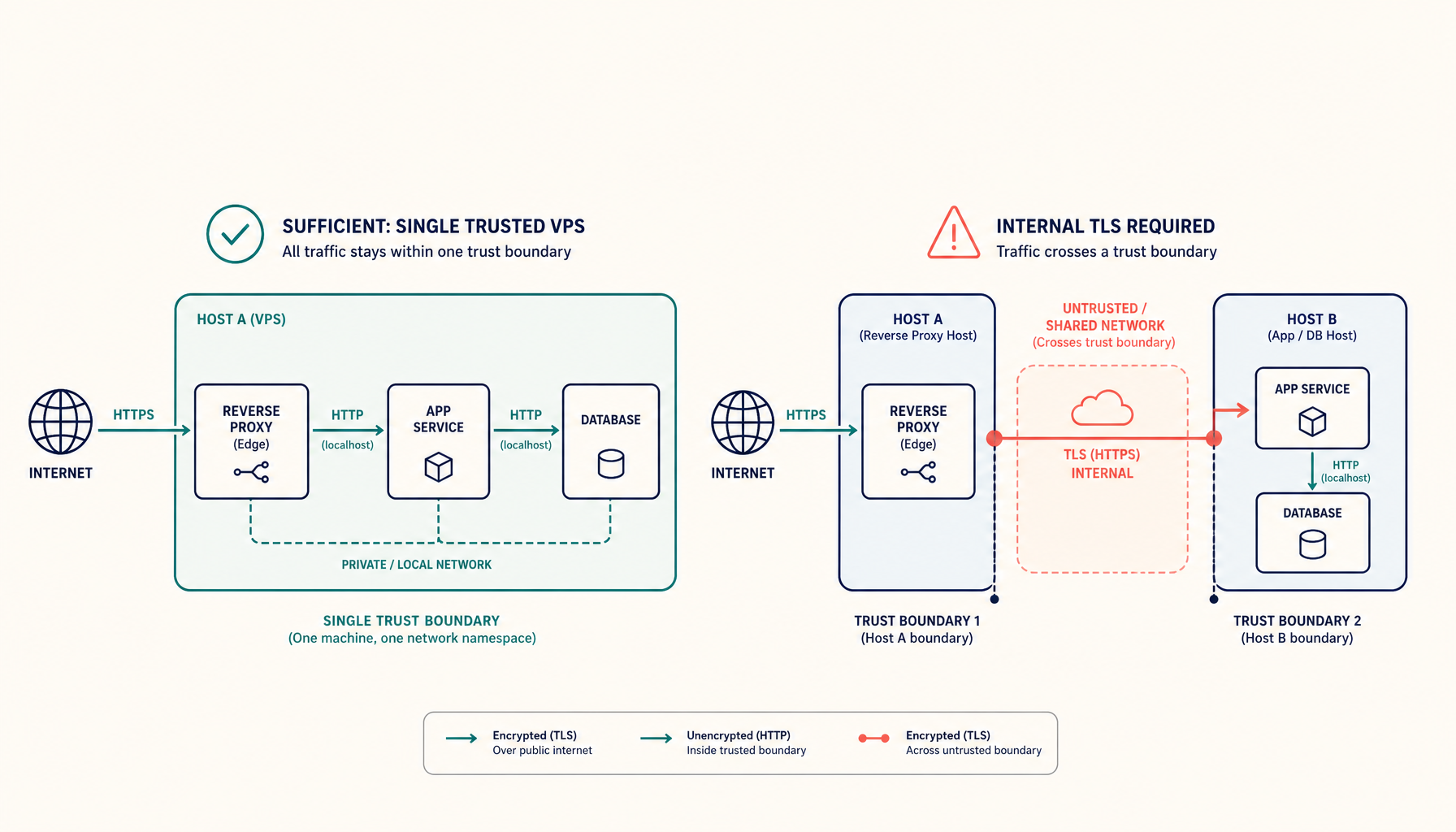
Your Node.js app stays on localhost:3000, and Nginx routes external traffic to it.
Step 1: Install Nginx
sudo apt update
sudo apt install nginx -y
Verify it is running:
sudo systemctl status nginx
Open your VPS IP in a browser. You should see the Nginx welcome page.
Step 2: Configure the firewall
Allow HTTP and HTTPS traffic:
sudo ufw allow 'Nginx Full'
sudo ufw enable
sudo ufw status
Step 3: Create a reverse proxy configuration
Remove the default site:
sudo rm /etc/nginx/sites-enabled/default
Create a new configuration for your app:
sudo nano /etc/nginx/sites-available/your-app
Add this configuration:
server {
    listen 80;
    server_name your-domain.com www.your-domain.com;

    location / {
        proxy_pass http://127.0.0.1:3000;
        proxy_http_version 1.1;
        proxy_set_header Upgrade $http_upgrade;
        proxy_set_header Connection 'upgrade';
        proxy_set_header Host $host;
        proxy_set_header X-Real-IP $remote_addr;
        proxy_set_header X-Forwarded-For $proxy_add_x_forwarded_for;
        proxy_set_header X-Forwarded-Proto $scheme;
        proxy_cache_bypass $http_upgrade;
    }
}
Enable the site:
sudo ln -s /etc/nginx/sites-available/your-app /etc/nginx/sites-enabled/
Step 4: Test and reload Nginx
Test the configuration:
sudo nginx -t
If the test passes, reload:
sudo systemctl reload nginx
Step 5: Add SSL with Let's Encrypt
Install Certbot:
sudo apt install certbot python3-certbot-nginx -y
Obtain and install the certificate:
sudo certbot --nginx -d your-domain.com -d www.your-domain.com
Certbot will:
- Obtain the certificate
- Modify your Nginx config to use HTTPS
- Set up auto-renewal
Verify auto-renewal is working:
sudo certbot renew --dry-run
Step 6: Production-ready configuration
After Certbot runs, your config will be updated. Here is a production-ready version with additional optimizations:
sudo nano /etc/nginx/sites-available/your-app
# Redirect HTTP to HTTPS
server {
    listen 80;
    server_name your-domain.com www.your-domain.com;
    return 301 https://$server_name$request_uri;
}

server {
    listen 443 ssl http2;
    server_name your-domain.com www.your-domain.com;

    # SSL certificates (managed by Certbot)
    ssl_certificate /etc/letsencrypt/live/your-domain.com/fullchain.pem;
    ssl_certificate_key /etc/letsencrypt/live/your-domain.com/privkey.pem;
    include /etc/letsencrypt/options-ssl-nginx.conf;
    ssl_dhparam /etc/letsencrypt/ssl-dhparams.pem;

    # Security headers
    add_header X-Frame-Options "SAMEORIGIN" always;
    add_header X-Content-Type-Options "nosniff" always;
    add_header X-XSS-Protection "1; mode=block" always;
    add_header Referrer-Policy "strict-origin-when-cross-origin" always;

    # Gzip compression
    gzip on;
    gzip_vary on;
    gzip_min_length 1024;
    gzip_types text/plain text/css text/xml text/javascript application/javascript application/json application/xml;

    # Proxy settings
    location / {
        proxy_pass http://127.0.0.1:3000;
        proxy_http_version 1.1;
        proxy_set_header Upgrade $http_upgrade;
        proxy_set_header Connection 'upgrade';
        proxy_set_header Host $host;
        proxy_set_header X-Real-IP $remote_addr;
        proxy_set_header X-Forwarded-For $proxy_add_x_forwarded_for;
        proxy_set_header X-Forwarded-Proto $scheme;
        proxy_cache_bypass $http_upgrade;

        # Timeouts
        proxy_connect_timeout 60s;
        proxy_send_timeout 60s;
        proxy_read_timeout 60s;
    }

    # Static files (if your app serves them from /public)
    location /static/ {
        alias /var/www/your-app/public/;
        expires 1y;
        add_header Cache-Control "public, immutable";
    }
}
Test and reload:
sudo nginx -t && sudo systemctl reload nginx
Step 7: Configure your Node.js app
Your Node.js app should trust the proxy headers. In Express:
const express = require('express');
const app = express();

// Trust first proxy
app.set('trust proxy', 1);

app.get('/', (req, res) => {
  // req.ip will now be the real client IP
  res.send('Hello World');
});

app.listen(3000, '127.0.0.1', () => {
  console.log('Server running on port 3000');
});
Binding to 127.0.0.1 ensures the app only accepts connections from localhost (through Nginx), not directly from the internet.
Step 8: Keep your app running with PM2
Install PM2 globally:
sudo npm install -g pm2
Start your app:
cd /var/www/your-app
pm2 start npm --name "your-app" -- start
Save the process list and enable startup:
pm2 save
pm2 startup
Run the command that PM2 outputs to enable auto-start on boot.
Multiple apps on one server
Add another site configuration:
sudo nano /etc/nginx/sites-available/another-app
server {
    listen 80;
    server_name another-domain.com;

    location / {
        proxy_pass http://127.0.0.1:3001;
        proxy_http_version 1.1;
        proxy_set_header Upgrade $http_upgrade;
        proxy_set_header Connection 'upgrade';
        proxy_set_header Host $host;
        proxy_set_header X-Real-IP $remote_addr;
        proxy_set_header X-Forwarded-For $proxy_add_x_forwarded_for;
        proxy_set_header X-Forwarded-Proto $scheme;
        proxy_cache_bypass $http_upgrade;
    }
}
Enable it and add SSL:
sudo ln -s /etc/nginx/sites-available/another-app /etc/nginx/sites-enabled/
sudo nginx -t && sudo systemctl reload nginx
sudo certbot --nginx -d another-domain.com
Load balancing (scaling up)
If you need to run multiple instances of your app:
upstream nodejs_cluster {
    least_conn;
    server 127.0.0.1:3000;
    server 127.0.0.1:3001;
    server 127.0.0.1:3002;
}

server {
    listen 443 ssl http2;
    server_name your-domain.com;

    # SSL config...

    location / {
        proxy_pass http://nodejs_cluster;
        # ... other proxy settings
    }
}
Start multiple instances with PM2:
pm2 start app.js -i 3 --name "your-app"
Troubleshooting
502 Bad Gateway
Your Node.js app is not running or not listening on the expected port.
# Check if the app is running
pm2 status

# Check what is listening on port 3000
sudo ss -tlnp | grep 3000

# Check app logs
pm2 logs your-app
504 Gateway Timeout
The request is taking too long. Increase timeouts in your Nginx config:
proxy_connect_timeout 300s;
proxy_send_timeout 300s;
proxy_read_timeout 300s;
SSL certificate not renewing
Check the Certbot timer:
sudo systemctl status certbot.timer
Manually test renewal:
sudo certbot renew --dry-run
WebSocket connections failing
Ensure your Nginx config includes the upgrade headers:
proxy_set_header Upgrade $http_upgrade;
proxy_set_header Connection 'upgrade';
Permission denied errors
Check Nginx error logs:
sudo tail -f /var/log/nginx/error.log
Ensure Nginx can read your SSL certificates:
sudo ls -la /etc/letsencrypt/live/your-domain.com/
Where to go next
Tutorials:
Comparisons:
ServerCompass:
Related in the StoicSoft network
If you regularly stitch together PDF, image, video, or batch-file workflows like the ones above, 1FileTool is the StoicSoft network's purpose-built desktop app — 245+ local-first tools, pay-once, files never leave the device.
From across the StoicSoft network
Hand-curated reads on the same topic from sister sites in the StoicSoft family.