Moving From Cloud to Homelab? Draw the Compute and Storage Boundaries First
Leaving rented cloud for self-hosted gear is exciting until you're staring at a NAS, a DAS, and a Proxmox box wondering what goes where. A decision tree for compute and storage boundaries before apps move home.
Leaving rented cloud for hardware you own is one of self-hosting's great satisfactions — right up until the boxes arrive and you're standing over a NAS, a DAS enclosure, and a Proxmox mini-server with no plan for what runs where. People who skip this step end up rebuilding a month later when the database they put on the NAS corrupts or the Proxmox box runs out of room. Draw the compute and storage boundaries before apps move home, and the migration is a one-time setup instead of a recurring redo.
Why the boundaries matter more at home than in the cloud
In the cloud, the provider hid these decisions — block storage "just worked," compute and storage were already separated. At home, you make those calls explicitly, and the wrong ones bite. The two boundaries that matter:
- Compute boundary — what runs where (which VM, which container, which host).
- Storage boundary — what data lives on fast local disk vs the bulk pool vs the network share.
Get these right and everything downstream is calm.
The storage boundary: fast state vs bulk data
The single most important rule, and the one cloud migrants most often miss:
- App state (databases, configs, indexes) → fast local SSD/NVMe on the box that runs the app. Latency-sensitive and intolerant of the disk disappearing.
- Bulk data (media, archives, backups) → the NAS or DAS pool. Throughput-oriented, tolerant of network latency.
Putting a database on a NAS share is the classic cloud-migrant mistake — it works until the NAS naps and the database corrupts, exactly the storage-split lesson and the USB-DAS guardrails.
The compute boundary: VMs, containers, and one owner per disk
On Proxmox, decide deliberately:
- VM vs LXC per workload (lighter LXC for most services; VMs for isolation or a storage appliance).
- One owner per physical disk — don't let Proxmox ZFS and a TrueNAS VM both claim the same drives. The full reasoning is in a sane Proxmox storage plan.
A quick decision tree
- Database / app state? → fast SSD on the compute box. Never the NAS.
- Media / large files? → NAS or DAS bulk pool.
- Needs the GPU (media transcoding, AI)? → the box with the GPU, passed through persistently.
- Public-facing and needs uptime? → consider keeping that one piece on a small cloud VPS, since home power/internet have outages.
Don't forget the boundary the cloud was handling: access
The cloud gave you a public IP. Home likely gives you CGNAT and no inbound port. Sort remote access as part of the migration, not after.
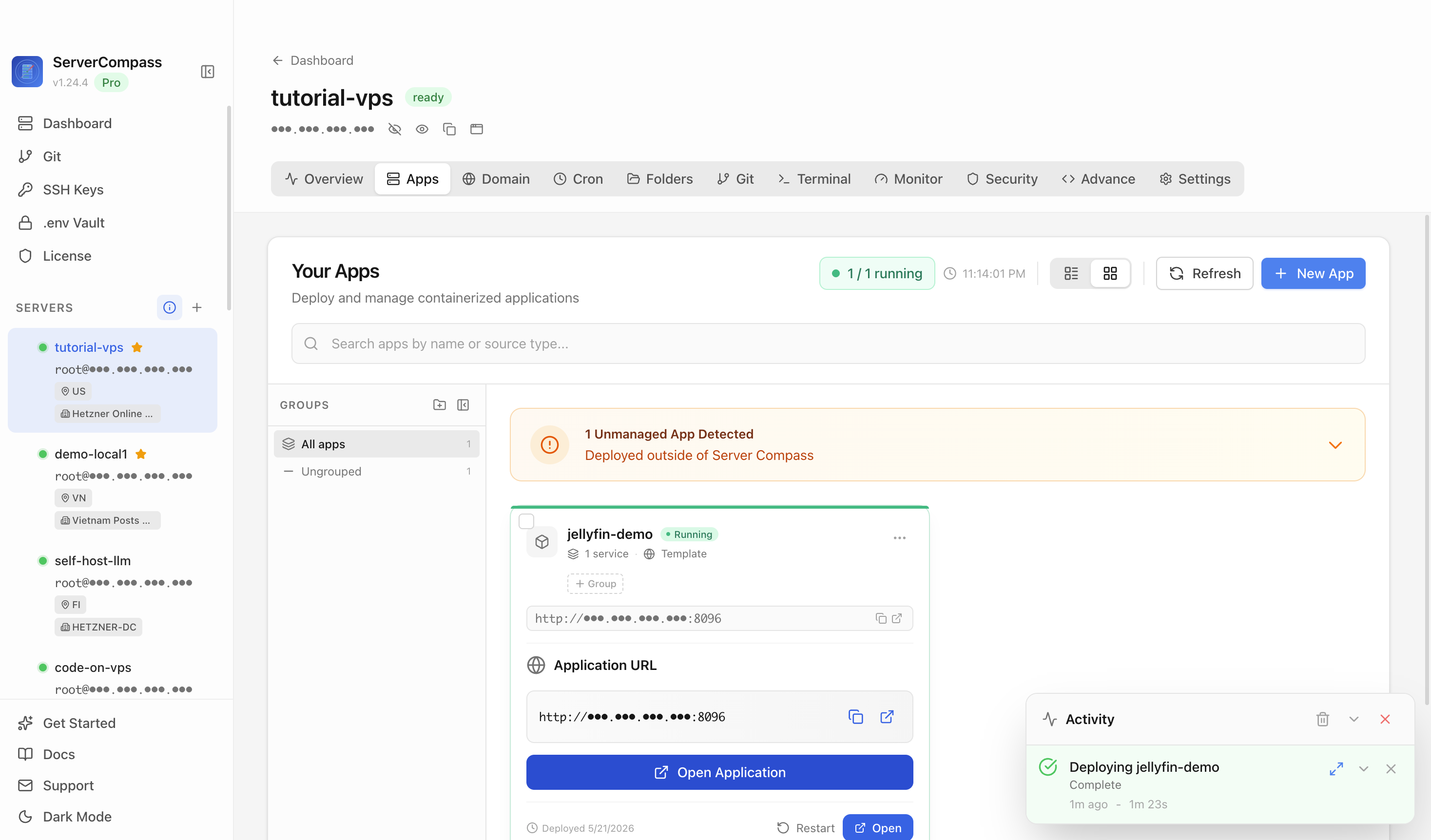
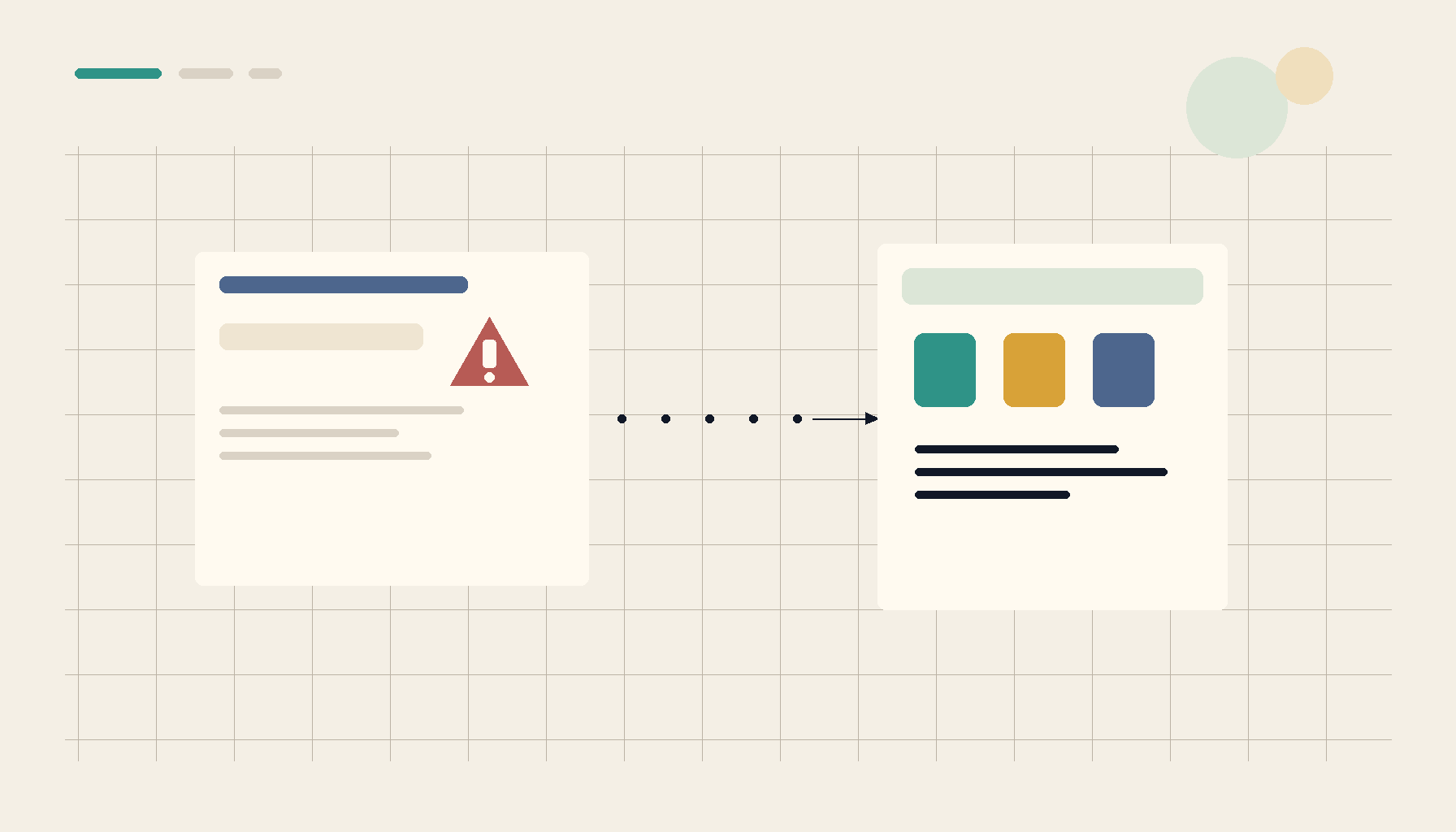
Mapping the move in ServerCompass — deciding compute and storage boundaries before apps leave the cloud, so the homelab is built once.
Migration checklist
- App state on fast SSD; bulk data on NAS/DAS — never databases on the NAS.
- VM vs LXC chosen per workload; one owner per disk.
- GPU workloads on the GPU box, passed through persistently.
- Public/uptime-critical pieces considered for a small cloud VPS.
- Remote access (CGNAT) planned as part of the move.
Takeaway
The cloud was quietly making your compute and storage boundaries for you. Bringing apps home means drawing them yourself — state on fast disk, bulk on the pool, one owner per disk, and a plan for access past CGNAT. Decide the boundaries first and the homelab gets built once, not rebuilt after the first corruption.
From across the StoicSoft network
Hand-curated reads on the same topic from sister sites in the StoicSoft family.
 Deploy Handbook8 min read
Proxmox panels vs lightweight deploy tools — which one do you actually need?
Homelab and VPS users keep conflating infrastructure management with application deployment. Here's how to tell whether you need a full Proxmox-style panel or just a deploy layer with monitoring.
Read on stoicvps.com/handbook Deploy Handbook8 min read
Best single-dashboard app health for self-hosters who aren't ready for Prometheus
Homelab and VPS users want one calm dashboard for app health — not a full observability stack. Here are the tools that hit the middle layer between SSH and Grafana.
Read on stoicvps.com/handbook Deploy Handbook7 min read
Lighter Than Kubernetes: Compose vs Podman vs K8s for a Single-Node Homelab
You want more structure than loose docker run commands but suspect Kubernetes is overkill for one Proxmox box. A practical comparison of Compose, rootless Podman, Podman Kube, and lightweight K8s.
Read on stoicvps.com/handbook