Storage Guardrails for USB-DAS Mini-PC Servers Before Your First Docker Stack
A mini PC with a USB direct-attached drive is a great cheap server until a power blip or a sleeping disk corrupts a database. Set the storage guardrails before the first container.

A mini PC plus a USB direct-attached storage (DAS) enclosure is one of the best value homelab setups there is — until the day a USB disk spins down mid-write, a UAS reset drops the volume, or a power blip leaves a database half-written. None of that is bad luck. It's the predictable result of treating a USB-attached disk like an internal one. Set a few guardrails before the first docker compose up and the setup is genuinely reliable.
Understand what's different about USB-attached disks
Internal SATA/NVMe disks stay present and powered. USB-DAS disks have three failure modes you must design around:
- Disk sleep / spin-down — the enclosure or the OS parks the drive, and the next write stalls or errors.
- UAS resets — under load, some USB-SATA bridges reset the link, and Linux re-enumerates the device, sometimes with a different device name.
- Power independence — the enclosure can lose power while the mini PC stays up, so the OS sees a disk vanish mid-operation.
Every guardrail below exists to neutralize one of those.
Guardrail 1: stable mounts, never /dev/sdX
Because USB devices can re-enumerate, never mount by /dev/sda1. Mount by UUID (or a filesystem label) in /etc/fstab, and add nofail so a missing enclosure doesn't block boot. A journaling filesystem (ext4/XFS) recovers from an unclean unmount far better than exFAT, which has no journal and is a poor choice for app data.
Guardrail 2: stop the disks from sleeping
A database doesn't tolerate its storage disappearing for a few seconds. Disable aggressive power management on the data disks (hdparm -B 255 -S 0, and disable USB autosuspend for the enclosure). If you must keep spin-down for archival drives, keep application data off them entirely.
Guardrail 3: put databases where they belong
This is the big one. SQLite and Postgres on a flaky USB volume is the fastest path to corruption. Two safe patterns:
- Keep databases and app config on the mini PC's internal NVMe/SSD, and put only bulk media (photos, video, downloads) on the USB-DAS.
- Or, if everything must live on the DAS, accept that you need solid backups and a tested restore — the corruption risk is real.
Splitting fast app state from bulk storage is a theme worth its own plan; see splitting app storage from bulk storage.
Guardrail 4: survive power loss
A small UPS that powers both the mini PC and the DAS enclosure removes the single nastiest failure — the enclosure browning out while the OS keeps writing. Even a cheap unit that buys 60 seconds for a clean shutdown is worth it. Pair it with sync-friendly settings and don't disable filesystem barriers to chase benchmark numbers.
Guardrail 5: back up off the box
A USB-DAS is not a backup — it's attached to the same machine and the same power. Send database dumps and irreplaceable media to a second location on a schedule, and rehearse the restore at least once. "I have backups" and "I have restored from backups" are different claims.
Preflight checklist
- Data volume mounted by UUID/label with
nofail, on a journaling filesystem. - Disk sleep and USB autosuspend disabled for data disks.
- Databases/app config on internal SSD; bulk media on the DAS.
- UPS covering both the mini PC and the enclosure.
- Off-box backups with a tested restore.
Get these in place before you deploy anything stateful and the mini-PC-plus-DAS combo earns its reputation as the best cheap-but-serious homelab there is.
From across the StoicSoft network
Hand-curated reads on the same topic from sister sites in the StoicSoft family.
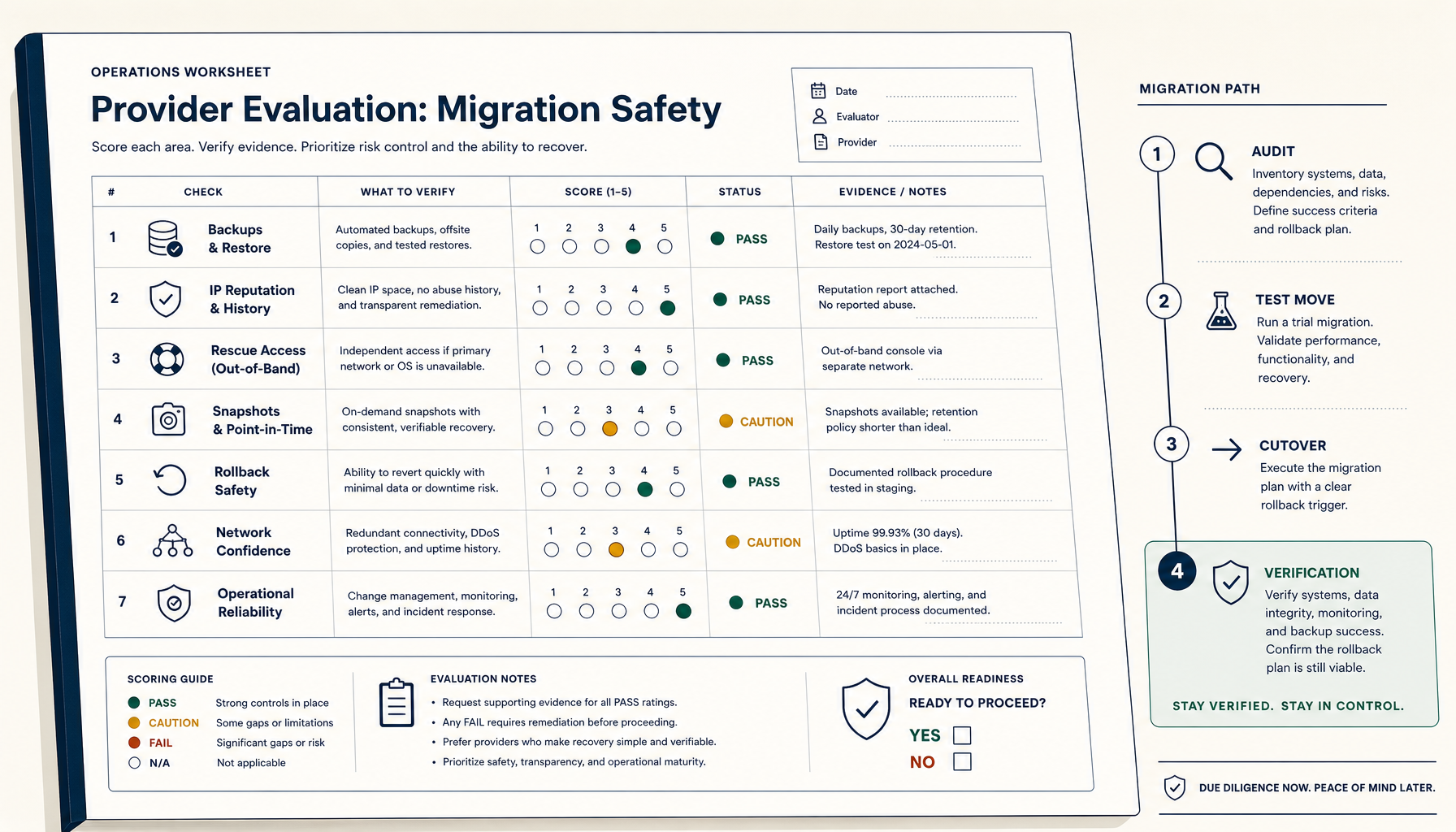 Deploy Handbook9 min read
How to Evaluate a VPS Provider for Migration Safety (Not Just Price)
Most VPS migration disasters trace to the workflow, not the destination. The seven verifications and four-phase migration playbook.
Read on stoicvps.com/handbook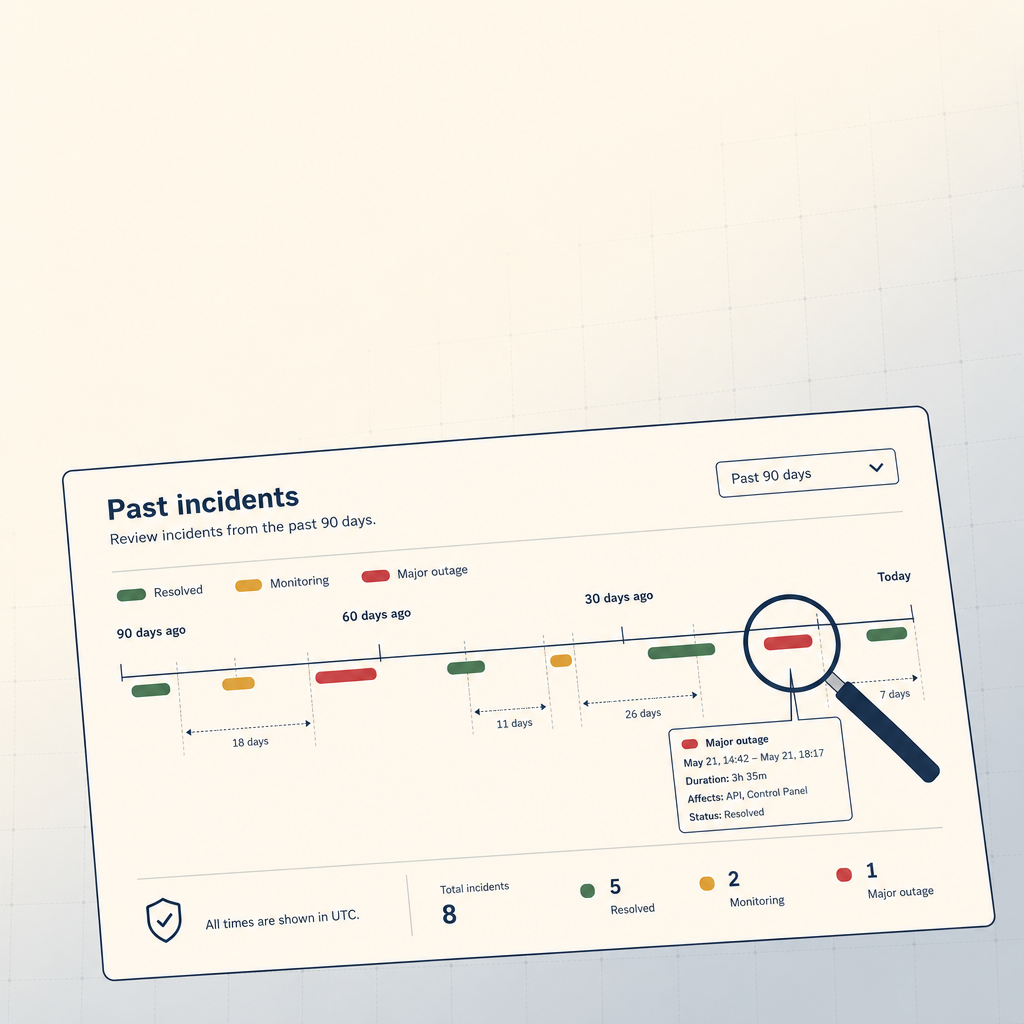 StoicVPS8 min read
How to Read a VPS Provider's Status Page (And What to Ignore)
The status page is the single most underused signal in VPS provider evaluation. The 90-day skim, what to look for, and what to weight elsewhere.
Read on stoicvps.com