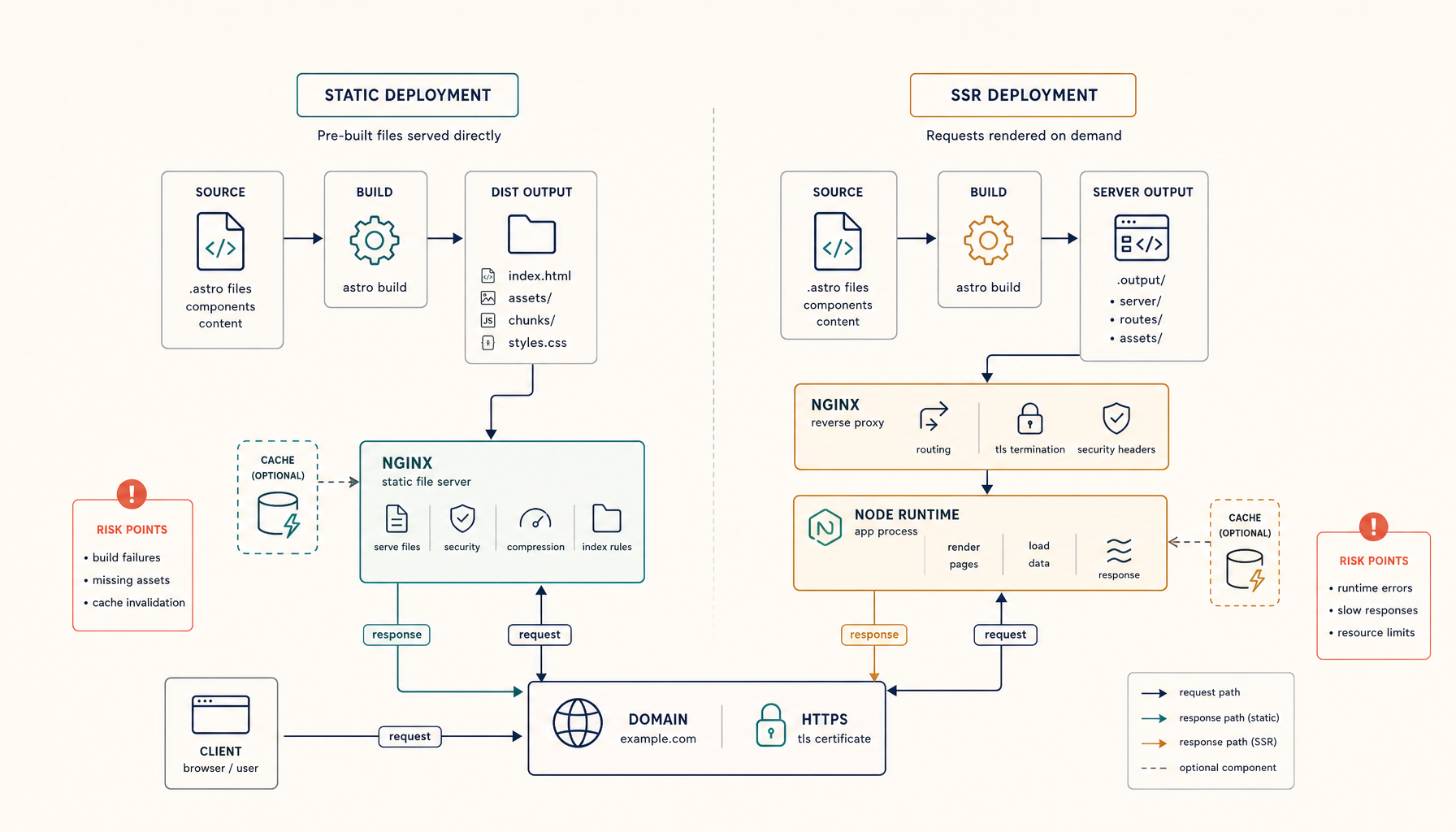
VPS Backup Strategy: Complete Guide
Implement reliable backups for your VPS including Docker volumes, databases, and application data with automated scheduling and offsite storage.
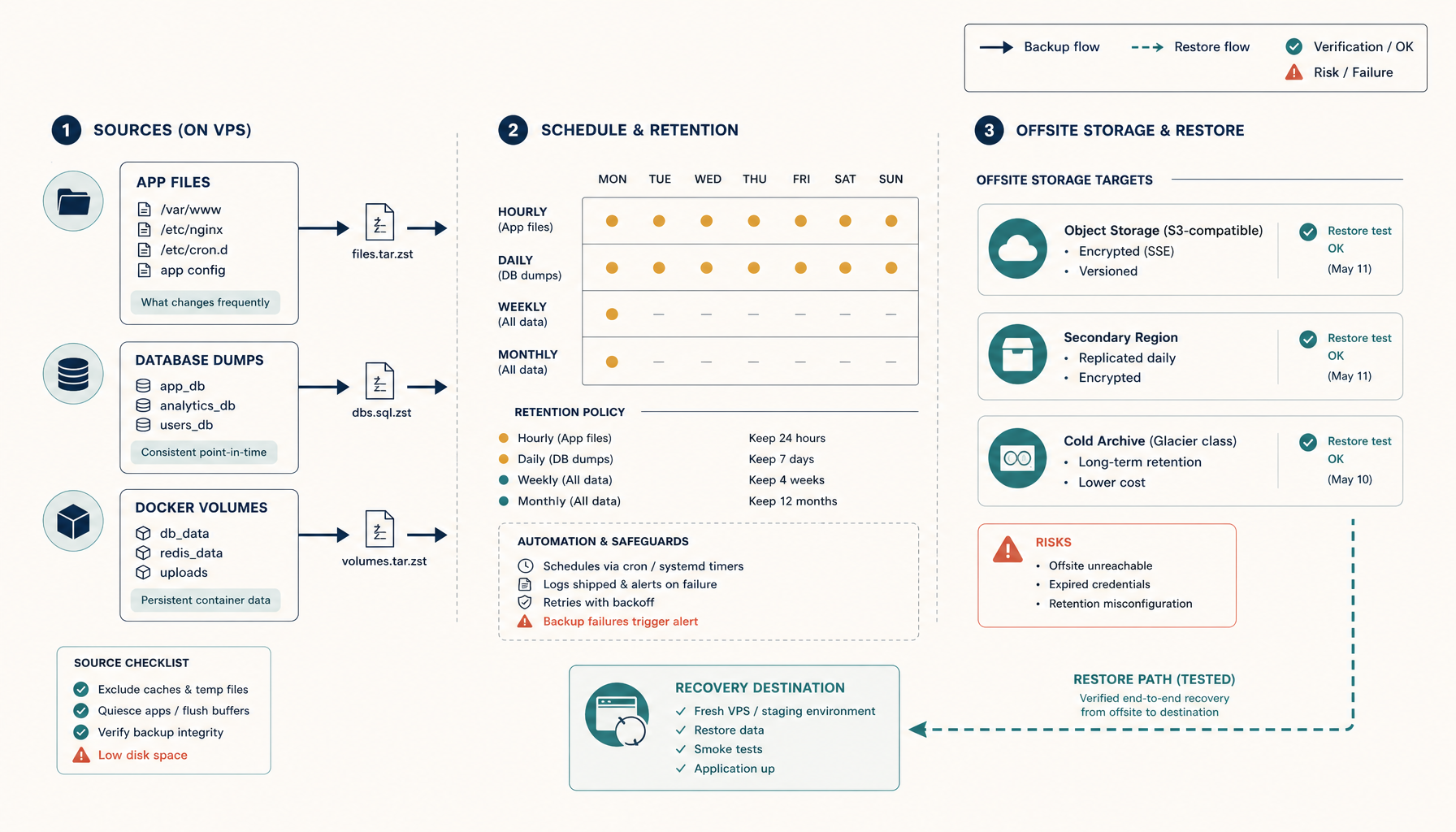
A practical guide to backing up your VPS. Covers Docker volumes, databases, application files, and automated offsite backups.
Overview
A solid backup strategy follows the 3-2-1 rule:
- 3 copies of your data
- 2 different storage types
- 1 offsite location
This guide covers:
- What to back up
- Docker volume backups
- Database backups
- Automated scheduling
- Offsite storage with restic
- Testing and restoring
What to back up
| Data Type | Location | Priority |
|---|---|---|
| Database data | Docker volumes, /var/lib/postgresql | Critical |
| User uploads | /var/www/uploads, Docker volumes | Critical |
| Application config | docker-compose.yml, .env files | High |
| SSL certificates | /etc/letsencrypt | Medium |
| System config | /etc/nginx, custom configs | Medium |
Do NOT back up:
- Docker images (rebuild from registry)
- node_modules, vendor directories (reinstall)
- System packages (reinstall)
- Log files (unless needed for compliance)
Step 1: Create backup directories
sudo mkdir -p /backups/{daily,weekly,monthly}
sudo mkdir -p /backups/scripts
sudo chown -R $USER:$USER /backups
Step 2: Docker volume backups
List your volumes
docker volume ls
Backup a single volume
docker run --rm \
  -v your_volume:/source:ro \
  -v /backups/daily:/backup \
  alpine tar czf /backup/your_volume-$(date +%Y%m%d).tar.gz -C /source .
Backup script for all volumes
Create /backups/scripts/backup-volumes.sh:
#!/bin/bash
set -e

BACKUP_DIR="/backups/daily"
DATE=$(date +%Y%m%d-%H%M%S)

# List of volumes to backup
VOLUMES=(
  "app_postgres_data"
  "app_redis_data"
  "app_uploads"
)

for VOLUME in "${VOLUMES[@]}"; do
  echo "Backing up $VOLUME..."
  docker run --rm \
    -v "$VOLUME":/source:ro \
    -v "$BACKUP_DIR":/backup \
    alpine tar czf "/backup/${VOLUME}-${DATE}.tar.gz" -C /source .
done

# Clean up backups older than 7 days
find "$BACKUP_DIR" -name "*.tar.gz" -mtime +7 -delete

echo "Backup completed: $(date)"
Make it executable:
chmod +x /backups/scripts/backup-volumes.sh
Backup with container stopped (for consistency)
For databases that need consistency:
#!/bin/bash
set -e

COMPOSE_DIR="$HOME/apps/myapp"
BACKUP_DIR="/backups/daily"
DATE=$(date +%Y%m%d-%H%M%S)

cd "$COMPOSE_DIR"

# Stop the app (keep database running for dump)
docker compose stop app

# Backup the volume
docker run --rm \
  -v myapp_data:/source:ro \
  -v "$BACKUP_DIR":/backup \
  alpine tar czf "/backup/myapp_data-${DATE}.tar.gz" -C /source .

# Start the app
docker compose start app
Step 3: Database backups
PostgreSQL backup
Create /backups/scripts/backup-postgres.sh:
#!/bin/bash
set -e

BACKUP_DIR="/backups/daily"
DATE=$(date +%Y%m%d-%H%M%S)
CONTAINER="myapp-postgres-1"  # Your postgres container name
DB_NAME="myapp"
DB_USER="postgres"

# Create SQL dump
docker exec "$CONTAINER" pg_dump -U "$DB_USER" "$DB_NAME" | gzip > "$BACKUP_DIR/postgres-${DB_NAME}-${DATE}.sql.gz"

# Clean up old backups
find "$BACKUP_DIR" -name "postgres-*.sql.gz" -mtime +7 -delete

echo "PostgreSQL backup completed: $(date)"
MySQL/MariaDB backup
#!/bin/bash
set -e

BACKUP_DIR="/backups/daily"
DATE=$(date +%Y%m%d-%H%M%S)
CONTAINER="myapp-mysql-1"
DB_NAME="myapp"
DB_USER="root"
DB_PASS="your_password"

docker exec "$CONTAINER" mysqldump -u"$DB_USER" -p"$DB_PASS" "$DB_NAME" | gzip > "$BACKUP_DIR/mysql-${DB_NAME}-${DATE}.sql.gz"

find "$BACKUP_DIR" -name "mysql-*.sql.gz" -mtime +7 -delete

echo "MySQL backup completed: $(date)"
MongoDB backup
#!/bin/bash
set -e

BACKUP_DIR="/backups/daily"
DATE=$(date +%Y%m%d-%H%M%S)
CONTAINER="myapp-mongo-1"
DB_NAME="myapp"

docker exec "$CONTAINER" mongodump --db "$DB_NAME" --archive --gzip > "$BACKUP_DIR/mongo-${DB_NAME}-${DATE}.gz"

find "$BACKUP_DIR" -name "mongo-*.gz" -mtime +7 -delete

echo "MongoDB backup completed: $(date)"
Step 4: Application file backups
Backup uploaded files
#!/bin/bash
set -e

BACKUP_DIR="/backups/daily"
DATE=$(date +%Y%m%d-%H%M%S)
UPLOADS_DIR="/var/www/myapp/uploads"

tar czf "$BACKUP_DIR/uploads-${DATE}.tar.gz" -C "$UPLOADS_DIR" .

find "$BACKUP_DIR" -name "uploads-*.tar.gz" -mtime +7 -delete
Backup configuration files
#!/bin/bash
set -e

BACKUP_DIR="/backups/daily"
DATE=$(date +%Y%m%d-%H%M%S)

# Config files to backup
tar czf "$BACKUP_DIR/config-${DATE}.tar.gz" \
  /home/deploy/apps/*/docker-compose.yml \
  /home/deploy/apps/*/.env \
  /etc/nginx/sites-available \
  /etc/letsencrypt

find "$BACKUP_DIR" -name "config-*.tar.gz" -mtime +30 -delete
Step 5: Automated scheduling with cron
Edit crontab:
crontab -e
Add scheduled backups:
# Daily backups at 3 AM
0 3 * * * /backups/scripts/backup-volumes.sh >> /var/log/backup.log 2>&1
0 3 * * * /backups/scripts/backup-postgres.sh >> /var/log/backup.log 2>&1

# Weekly backup rotation (Sunday at 4 AM)
0 4 * * 0 cp /backups/daily/*.tar.gz /backups/weekly/

# Monthly backup rotation (1st of month at 5 AM)
0 5 1 * * cp /backups/daily/*.tar.gz /backups/monthly/

# Clean weekly backups older than 30 days
0 6 * * 0 find /backups/weekly -name "*.tar.gz" -mtime +30 -delete

# Clean monthly backups older than 365 days
0 6 1 * * find /backups/monthly -name "*.tar.gz" -mtime +365 -delete
Step 6: Offsite backups with restic
Restic is a modern backup tool with encryption and deduplication.
Install restic
sudo apt install restic -y
Initialize a backup repository
Backblaze B2:
export B2_ACCOUNT_ID="your-account-id"
export B2_ACCOUNT_KEY="your-account-key"

restic -r b2:your-bucket-name:backups init
AWS S3:
export AWS_ACCESS_KEY_ID="your-key"
export AWS_SECRET_ACCESS_KEY="your-secret"

restic -r s3:s3.amazonaws.com/your-bucket/backups init
SFTP to another server:
restic -r sftp:user@backup-server:/backups init
Create a backup
restic -r b2:your-bucket:backups backup /backups/daily
Automated offsite backup script
Create /backups/scripts/offsite-backup.sh:
#!/bin/bash
set -e

export B2_ACCOUNT_ID="your-account-id"
export B2_ACCOUNT_KEY="your-account-key"
export RESTIC_PASSWORD="your-encryption-password"
export RESTIC_REPOSITORY="b2:your-bucket:backups"

# Backup local backups directory
restic backup /backups/daily

# Backup Docker volumes directly
for VOLUME in app_postgres_data app_uploads; do
  docker run --rm \
    -v "$VOLUME":/data:ro \
    -v /backups/scripts:/scripts:ro \
    -e B2_ACCOUNT_ID \
    -e B2_ACCOUNT_KEY \
    -e RESTIC_PASSWORD \
    -e RESTIC_REPOSITORY \
    restic/restic backup /data --tag "$VOLUME"
done

# Prune old backups (keep 7 daily, 4 weekly, 12 monthly)
restic forget --keep-daily 7 --keep-weekly 4 --keep-monthly 12 --prune

echo "Offsite backup completed: $(date)"
Add to cron:
0 4 * * * /backups/scripts/offsite-backup.sh >> /var/log/backup.log 2>&1
Store credentials securely
Create /backups/.env:
B2_ACCOUNT_ID=your-account-id
B2_ACCOUNT_KEY=your-account-key
RESTIC_PASSWORD=your-encryption-password
RESTIC_REPOSITORY=b2:your-bucket:backups
chmod 600 /backups/.env
Update script:
#!/bin/bash
set -e
source /backups/.env
export B2_ACCOUNT_ID B2_ACCOUNT_KEY RESTIC_PASSWORD RESTIC_REPOSITORY
# ... rest of script
Step 7: Verify and test backups
List restic snapshots
restic -r b2:your-bucket:backups snapshots
Test restore a file
# Create a restore directory
mkdir /tmp/restore-test

# Restore latest snapshot
restic -r b2:your-bucket:backups restore latest --target /tmp/restore-test

# Verify files
ls -la /tmp/restore-test
Test database restore
# Create test database
docker exec myapp-postgres-1 createdb -U postgres test_restore

# Restore
gunzip -c /backups/daily/postgres-myapp-latest.sql.gz | \
  docker exec -i myapp-postgres-1 psql -U postgres test_restore

# Verify
docker exec myapp-postgres-1 psql -U postgres -d test_restore -c "\dt"

# Cleanup
docker exec myapp-postgres-1 dropdb -U postgres test_restore
Automated restore test (monthly)
Create /backups/scripts/test-restore.sh:
#!/bin/bash
set -e

TEST_DIR="/tmp/restore-test-$(date +%Y%m%d)"
mkdir -p "$TEST_DIR"

# Get latest backup
LATEST=$(ls -t /backups/daily/postgres-myapp-*.sql.gz | head -1)

# Test extraction
gunzip -c "$LATEST" > "$TEST_DIR/test.sql"

# Verify SQL is valid (basic check)
head -50 "$TEST_DIR/test.sql" | grep -q "PostgreSQL database dump"

if [ $? -eq 0 ]; then
  echo "Restore test PASSED: $(date)" >> /var/log/backup.log
else
  echo "Restore test FAILED: $(date)" >> /var/log/backup.log
  # Send alert
  # curl -X POST -d "Backup restore test failed" https://your-webhook
fi

rm -rf "$TEST_DIR"
Disaster recovery plan
Document your recovery process:
1. Provision new VPS
# Create new VPS with same specs
# Point DNS to new IP
2. Install prerequisites
curl -fsSL https://get.docker.com | sh
sudo apt install restic -y
3. Restore from offsite backup
export RESTIC_REPOSITORY="b2:your-bucket:backups"
export RESTIC_PASSWORD="your-encryption-password"

# List snapshots
restic snapshots

# Restore to temp directory
restic restore latest --target /tmp/restore
4. Restore application
# Copy docker-compose.yml
cp /tmp/restore/config/docker-compose.yml ~/apps/myapp/

# Restore volumes
docker volume create app_postgres_data
docker run --rm \
  -v app_postgres_data:/target \
  -v /tmp/restore/daily:/backup \
  alpine tar xzf /backup/app_postgres_data-latest.tar.gz -C /target

# Start application
cd ~/apps/myapp
docker compose up -d
5. Verify
# Check application is working
curl https://yourdomain.com

# Check database
docker exec myapp-postgres-1 psql -U postgres -c "\dt"
Backup monitoring
Simple monitoring script
Create /backups/scripts/monitor-backups.sh:
#!/bin/bash

BACKUP_DIR="/backups/daily"
MAX_AGE_HOURS=25
ALERT_WEBHOOK="https://your-webhook-url"

# Find backups older than threshold
OLD_BACKUPS=$(find "$BACKUP_DIR" -name "*.tar.gz" -mmin +$((MAX_AGE_HOURS * 60)) | wc -l)
TOTAL_BACKUPS=$(find "$BACKUP_DIR" -name "*.tar.gz" | wc -l)

if [ "$OLD_BACKUPS" -eq "$TOTAL_BACKUPS" ]; then
  # All backups are old - alert!
  curl -X POST "$ALERT_WEBHOOK" \
    -H "Content-Type: application/json" \
    -d "{\"text\": \"Backup alert: No recent backups found on $(hostname)\"}"
fi
Add to cron:
0 8 * * * /backups/scripts/monitor-backups.sh
Troubleshooting
Backup script fails silently
Check logs:
tail -100 /var/log/backup.log
Test script manually:
/backups/scripts/backup-volumes.sh
Restic connection timeout
Check credentials and network:
restic -r b2:your-bucket:backups snapshots
Disk space full
Check usage:
df -h /backups
du -sh /backups/*
Clean old backups:
find /backups/daily -name "*.tar.gz" -mtime +3 -delete
Database backup corrupted
Verify backup integrity:
gunzip -t /backups/daily/postgres-myapp-*.sql.gz
If corrupted, check container logs during backup time:
docker logs myapp-postgres-1 --since 24h
Where to go next
Tutorials:
Comparisons:
ServerCompass:
Related in the StoicSoft network
If you regularly stitch together PDF, image, video, or batch-file workflows like the ones above, 1FileTool is the StoicSoft network's purpose-built desktop app — 245+ local-first tools, pay-once, files never leave the device.
From across the StoicSoft network
Hand-curated reads on the same topic from sister sites in the StoicSoft family.
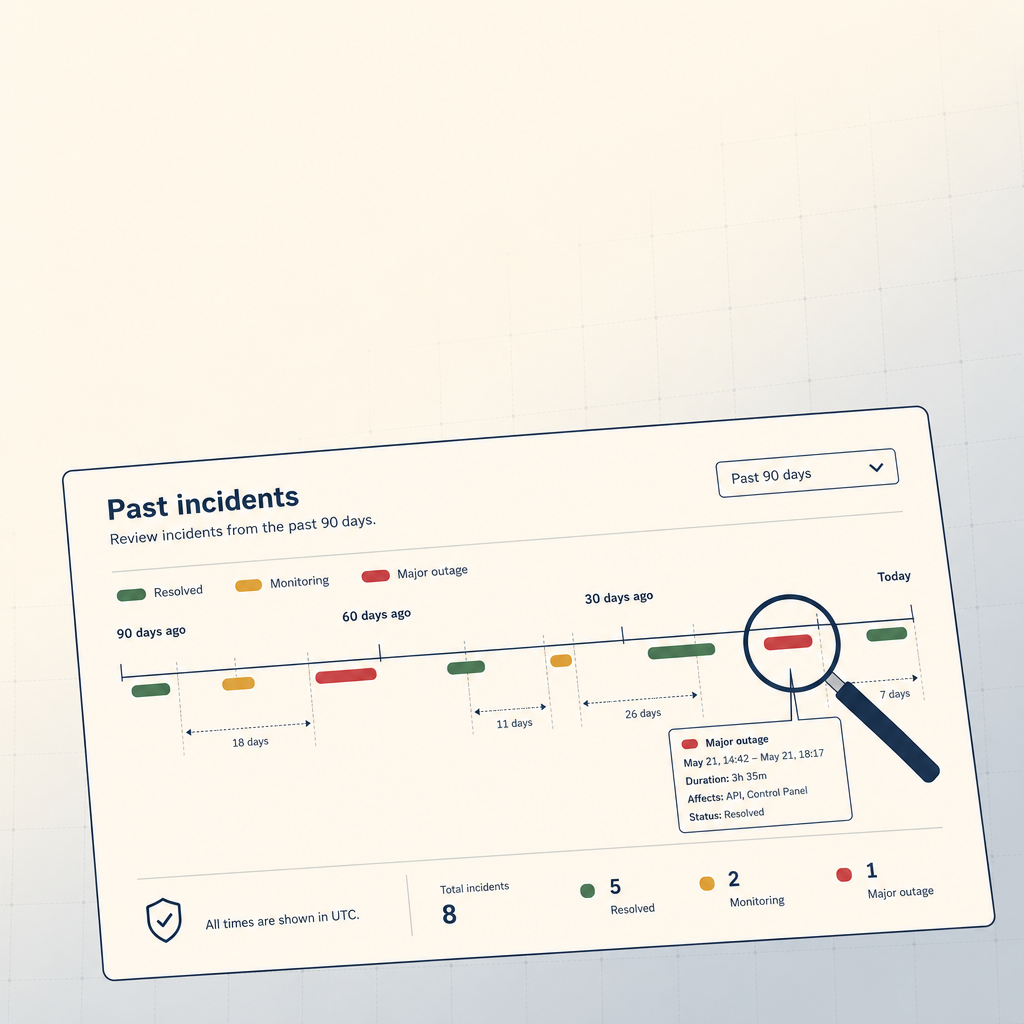 StoicVPS8 min read
How to Read a VPS Provider's Status Page (And What to Ignore)
The status page is the single most underused signal in VPS provider evaluation. The 90-day skim, what to look for, and what to weight elsewhere.
Read on stoicvps.com 1FileTool5 min read
Watch Any Folder. Process Files as They Arrive.
The Folder Monitor watches any folder and automatically applies a tool to every new file — compress, convert, strip metadata — in the background, without you having to touch the tool each time.
Read on 1filetool.com