How to Self-Host Uptime Kuma on a VPS (Production Setup)
Run Uptime Kuma for self-hosted uptime monitoring. Beautiful status pages without monthly fees.
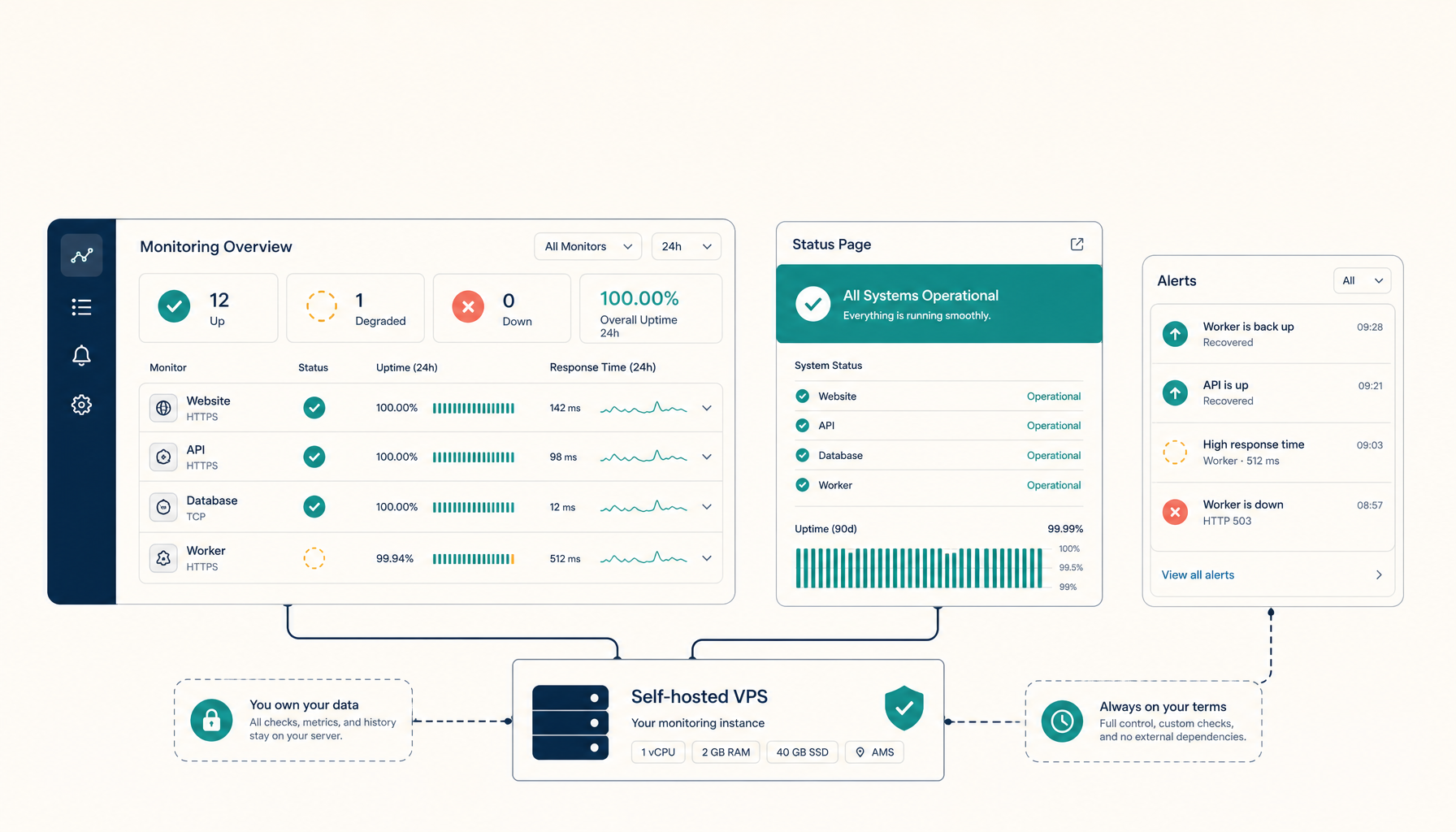
Uptime Kuma is a self-hosted monitoring tool with a clean UI. Monitor HTTP, TCP, DNS, and more. Beautiful status pages included.
No per-monitor pricing. No SaaS fees. Just your server cost.
What you will have at the end
- Uptime Kuma running at
https://status.your-domain.com - Automatic SSL via Traefik
- Persistent monitoring data
- Public status page ready to share
Step 1: Prepare the server
sudo apt update && sudo apt upgrade -y
Install Docker if needed:
curl -fsSL https://get.docker.com | sh
sudo usermod -aG docker $USER
newgrp docker
Step 2: Create directory structure
mkdir -p ~/apps/uptime-kuma/data
cd ~/apps/uptime-kuma
Step 3: Create docker-compose.yml
services:
  traefik:
    image: traefik:v2.11
    command:
      - --providers.docker=true
      - --providers.docker.exposedbydefault=false
      - --entrypoints.web.address=:80
      - --entrypoints.websecure.address=:443
      - --certificatesresolvers.letsencrypt.acme.tlschallenge=true
      - [email protected]
      - --certificatesresolvers.letsencrypt.acme.storage=/letsencrypt/acme.json
    ports:
      - 80:80
      - 443:443
    volumes:
      - /var/run/docker.sock:/var/run/docker.sock:ro
      - letsencrypt:/letsencrypt
    restart: unless-stopped

  uptime-kuma:
    image: louislam/uptime-kuma:1
    restart: unless-stopped
    volumes:
      - ./data:/app/data
    environment:
      - TZ=UTC
    labels:
      - traefik.enable=true
      - traefik.http.routers.uptime-kuma.rule=Host(`status.your-domain.com`)
      - traefik.http.routers.uptime-kuma.entrypoints=websecure
      - traefik.http.routers.uptime-kuma.tls=true
      - traefik.http.routers.uptime-kuma.tls.certresolver=letsencrypt
      - traefik.http.services.uptime-kuma.loadbalancer.server.port=3001

volumes:
  letsencrypt:
Step 4: Deploy
No environment variables needed. Uptime Kuma handles setup through the UI.
docker compose up -d
Step 5: Create admin account
Visit https://status.your-domain.com and create your admin account on first visit.
This becomes your login for the dashboard.
Step 6: Add your first monitor
- Click "Add New Monitor"
- Select monitor type (HTTP, TCP, DNS, etc.)
- Enter the URL or host to monitor
- Set check interval (default: 60 seconds)
- Configure notifications (optional)
Step 7: Set up status page
- Go to "Status Pages" in the sidebar
- Click "New Status Page"
- Add monitors to display
- Customize branding
- Share the public URL
Notification options
Uptime Kuma supports 90+ notification services:
- Slack, Discord, Microsoft Teams
- Email (SMTP)
- Telegram, Pushover
- PagerDuty, Opsgenie
- Custom webhooks
Configure in Settings > Notifications.
Backup strategy
Uptime Kuma uses SQLite. The data directory contains everything.
#!/bin/bash
# Daily backup script
BACKUP_DIR=/backups/uptime-kuma
mkdir -p $BACKUP_DIR

# Stop for consistent backup (brief downtime)
docker compose stop uptime-kuma

# Copy data
tar -czf $BACKUP_DIR/uptime-kuma-$(date +%Y%m%d).tar.gz ~/apps/uptime-kuma/data

# Restart
docker compose start uptime-kuma
For zero-downtime, copy the SQLite file and verify integrity:
sqlite3 ~/apps/uptime-kuma/data/kuma.db ".backup '/backups/kuma-backup.db'"
Troubleshooting
Cannot access dashboard after setup
- Check if container is running:
docker compose ps - Verify Traefik logs:
docker compose logs traefik - Confirm DNS A record points to your VPS IP
Monitors show as down incorrectly
- Check if the monitored service is accessible from your VPS
- Verify firewall allows outbound connections
- Test manually:
curl -I https://example.com
Notifications not sending
- Verify notification service credentials
- Check Uptime Kuma logs:
docker compose logs uptime-kuma - Test notification in Settings > Notifications > Test
Status page not loading
- Ensure the status page is published
- Check if the slug matches the URL
- Verify Traefik is routing correctly
Internal links
- Tutorial: Deploy Docker Compose to VPS
- Tutorial: Self-Host n8n
- Comparison: Pingdom Alternatives
- ServerCompass: One-click Uptime Kuma deployment
From across the StoicSoft network
Hand-curated reads on the same topic from sister sites in the StoicSoft family.
 Deploy Handbook
Coolify vs Dokploy: Self-Hosted PaaS Comparison
Both let you run your own Heroku. Which one should you pick for your VPS?
Read on stoicvps.com/handbook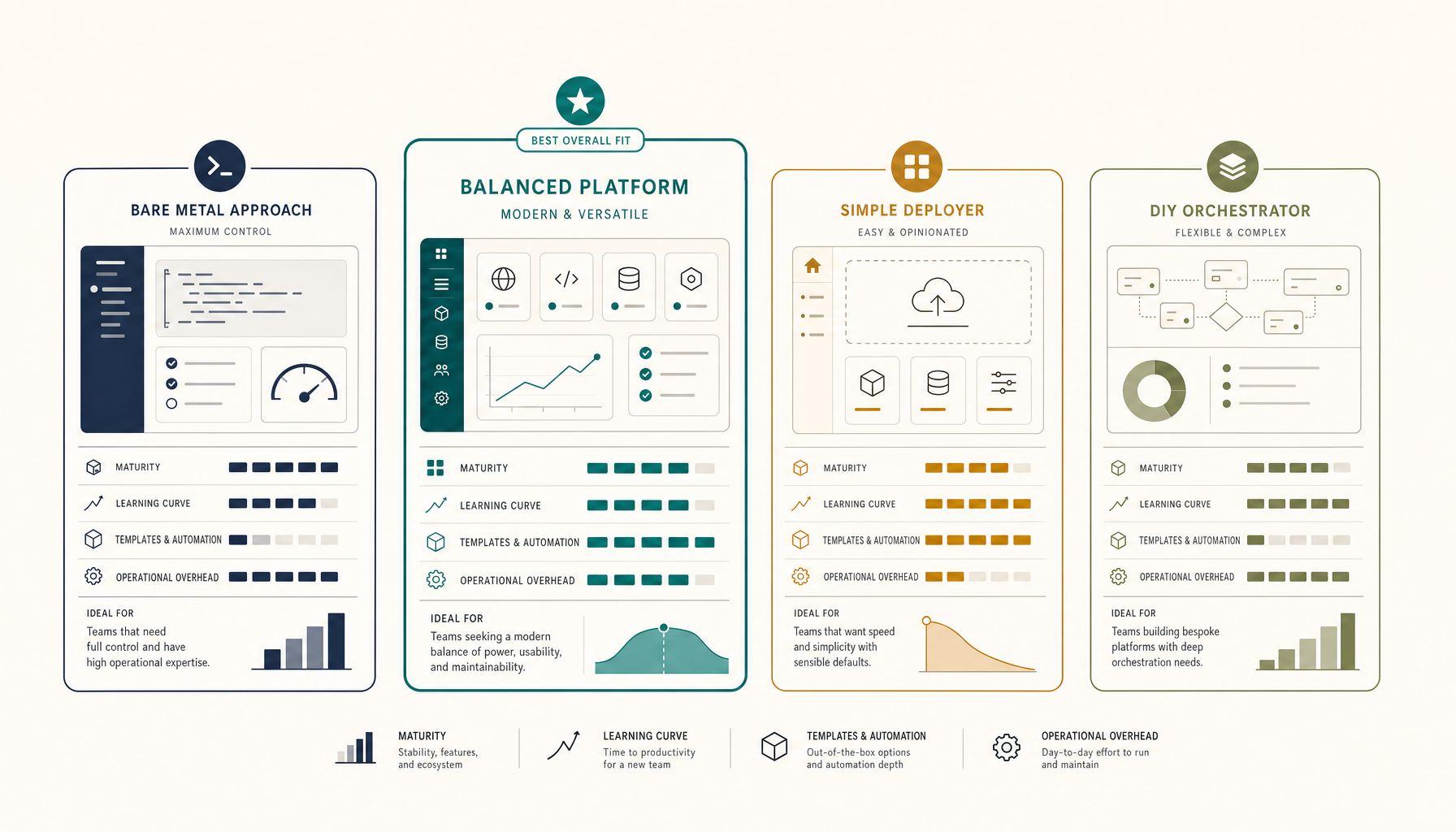 Deploy Handbook
Best Self-Hosted PaaS (2026): Coolify, Dokploy, CapRover, ServerCompass
A practical comparison of self-hosted PaaS options. Run your own Heroku alternative on a VPS for a fraction of the cost.
Read on stoicvps.com/handbook