Stable Tailscale on Linux: A Post-Install Stability and Backup Routine
Auto-start, healthcheck, backup channel, and notification routine to make a Tailscale node you can actually trust to stay reachable.
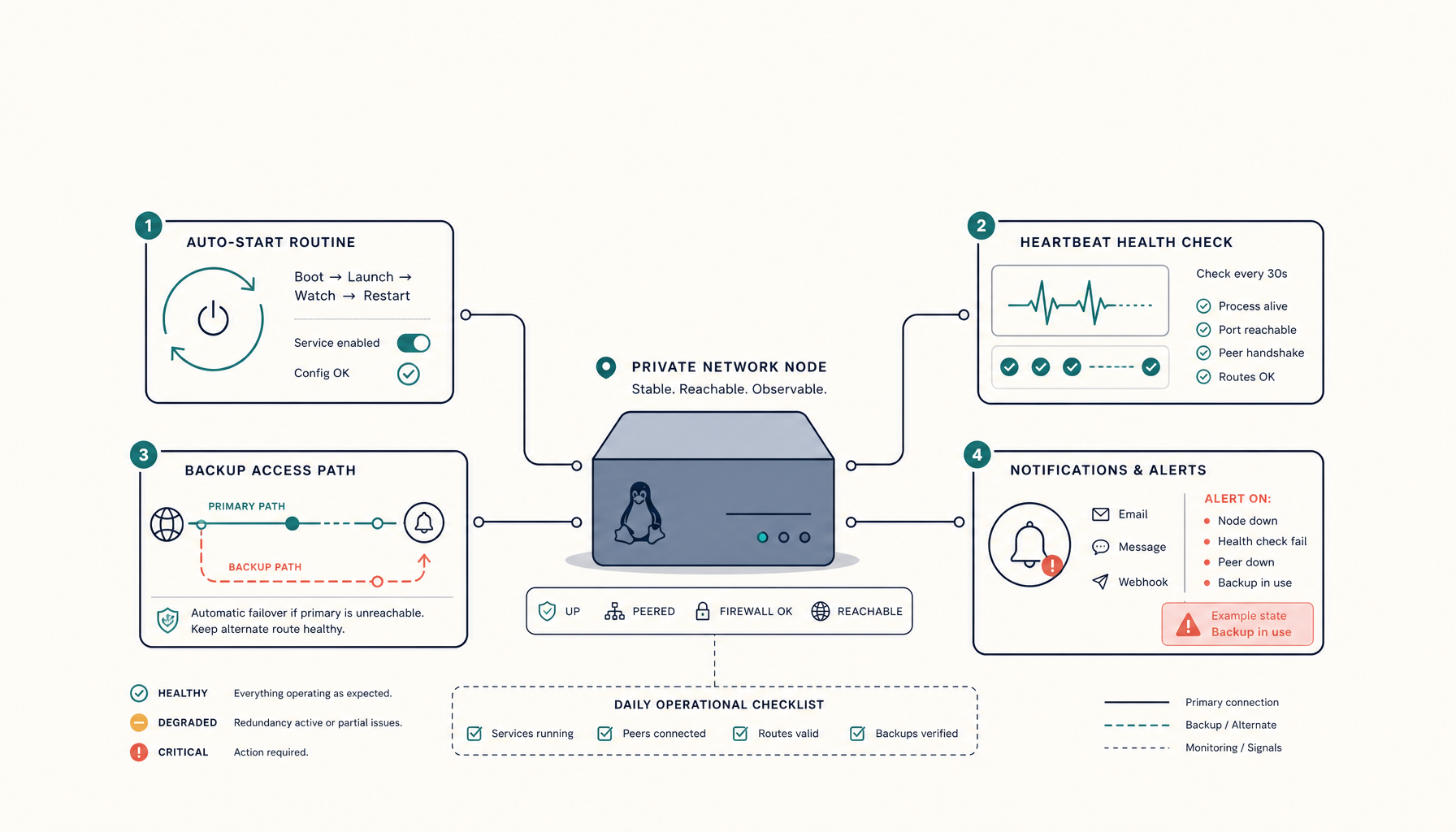
You set up Tailscale on a Linux Mint box (or Ubuntu, Debian, or any Linux desktop), got it connected, and now you need it to stay working. Reliably. Across reboots, power events, and the occasional flaky Wi-Fi hiccup.
This is the practical post-install routine. It costs about 30 minutes once and saves you from "Tailscale was down again" tickets later.
What "stable" actually means
Three failure modes you want to prevent:
- Tailscale daemon crashes silently. You don't notice until you can't SSH in.
- Network change breaks the tunnel. New Wi-Fi, DHCP renewal, sleep/wake — connection drops and doesn't recover cleanly.
- Boot order race. Machine reboots, Tailscale starts before the network is ready, fails, doesn't retry.
A stable Tailscale setup defends against all three.
Step 1: Confirm the daemon is set to auto-start
systemctl is-enabled tailscaled
systemctl is-active tailscaled
Both should say enabled and active. If either is disabled:
sudo systemctl enable --now tailscaled
The --now makes it start immediately and on every boot.
Step 2: Confirm the connection is set to auto-up
The daemon being up isn't the same as the connection being up. After reboot, Tailscale needs the auth token to be remembered.
sudo tailscale up --reset --authkey=tskey-auth-XXXXXX # only if you need to re-auth
Once authenticated, the credentials persist. Test by rebooting:
sudo systemctl reboot
# Wait for it to come back, then:
tailscale status
If status shows the device as connected without manual intervention, you're set.
For headless / always-on machines, generate an ephemeral key with the --ssh flag if you want SSH-via-Tailscale, or a regular auth key. Pre-generate from the Tailscale admin console so you can re-auth without your dev laptop.
Step 3: Set the daemon to depend on network being ready
By default the unit file is fine on Mint/Ubuntu, but if you have any custom networking (Wi-Fi roaming, VPN-on-VPN, etc.), edit the override to wait properly:
sudo systemctl edit tailscaled
Add:
[Unit]
After=network-online.target
Wants=network-online.target
Then:
sudo systemctl enable systemd-networkd-wait-online.service
sudo systemctl daemon-reload
This makes Tailscale's daemon wait for an IP before starting. Eliminates the "boot too fast" race.
Step 4: Add a healthcheck
Even with the above, occasional failures happen. A small healthcheck cron makes the system self-healing:
sudo tee /usr/local/bin/tailscale-healthcheck.sh > /dev/null <<'EOF'
#!/usr/bin/env bash
# Verify Tailscale is up. If not, attempt restart.
set -e

if ! tailscale status >/dev/null 2>&1; then
  logger -t tailscale-healthcheck "tailscale status failed; restarting daemon"
  systemctl restart tailscaled
  sleep 5
  tailscale up
fi

# Also verify a known peer is reachable
if ! tailscale ping -c 1 -t 5s your-known-peer-name >/dev/null 2>&1; then
  logger -t tailscale-healthcheck "ping to peer failed; bouncing connection"
  tailscale down
  sleep 2
  tailscale up
fi
EOF

sudo chmod +x /usr/local/bin/tailscale-healthcheck.sh
Run it every 5 minutes via systemd timer or cron:
sudo crontab -e
# Add:
*/5 * * * * /usr/local/bin/tailscale-healthcheck.sh
The peer-ping line is optional but worth it — it catches "daemon thinks it's up but the tunnel is wedged" cases that tunnel restarts fix.
Step 5: A backup channel for "Tailscale itself is broken"
The first time you can't SSH in because Tailscale is unhealthy and SSH-on-the-public-Internet is locked down, you'll wish you had an out-of-band path. Options:
- Old-school SSH on a non-standard public port, behind fail2ban and key-only auth, available only when needed.
- A second VPN (WireGuard) configured but inactive. Activate via console if needed.
- Provider console / KVM (if you're on a VPS that offers it). Most providers do — check before you need it.
Pick one. You don't need it daily. You need it once.
Step 6: A backup routine
If the box is running anything stateful (notes, projects, code), back it up. The minimum viable backup:
# /usr/local/bin/daily-backup.sh
#!/usr/bin/env bash
set -e
DEST="/var/backups/$(date +%Y%m%d)"
mkdir -p "$DEST"

# Home dirs (skip caches and node_modules)
rsync -a --delete \
  --exclude='.cache' --exclude='node_modules' --exclude='.npm' \
  /home/ "$DEST/home/"

# Common app data
[ -d /var/lib/postgresql ] && tar -czf "$DEST/postgres.tar.gz" /var/lib/postgresql 2>/dev/null
[ -d /var/lib/docker/volumes ] && tar -czf "$DEST/docker-volumes.tar.gz" /var/lib/docker/volumes 2>/dev/null

# Sync to remote
rsync -a "$DEST/" backup-server:/backups/$(hostname)/$(date +%Y%m%d)/ || true

# Keep last 7 daily, last 4 weekly
find /var/backups -maxdepth 1 -type d -mtime +7 -exec rm -rf {} \;
Schedule daily at 03:00:
sudo crontab -e
# Add:
0 3 * * * /usr/local/bin/daily-backup.sh >> /var/log/backup.log 2>&1
Run it manually first to confirm the rsync target works before you trust the cron. The script gracefully handles missing directories so you don't need to customise per-machine.
Step 7: Notification when Tailscale is down
For anything you depend on, set up a "this machine is offline" notification.
The easiest version: have another machine ping it via Tailscale every 5 minutes and alert you if it fails three times in a row.
# On a different always-on machine
*/5 * * * * tailscale ping -c 1 -t 5s your-mint-box.tailnet || \
  /usr/local/bin/notify-me.sh "Mint box offline"
The notify-me.sh can be a curl to ntfy.sh, a Slack webhook, a Pushover call — whatever you check.
Quick recap
Auto-start daemon          ✓ systemctl enable --now tailscaled
Persist auth               ✓ sudo tailscale up after first time, no logout
Network-ready dependency   ✓ systemd override After=network-online.target
Healthcheck cron           ✓ /usr/local/bin/tailscale-healthcheck.sh every 5 min
Backup channel             ✓ Out-of-band SSH or provider console
Daily backups              ✓ rsync to backup-server, 7-day retention
External monitor           ✓ Another node pings + alerts
Each step is small. Together they make a Tailscale node you can trust to stay reachable.
Internal links
- Tutorial: Set up WireGuard as a Tailscale backup
- Guide: VPS Backup Strategy
- Guide: SSH Hardening Baseline
- ServerCompass: Self-host monitoring tools to watch your nodes