Proxmox Backup Server single-disk installs need datastore partitioning guardrails
Installing Proxmox Backup Server onto a single large disk without planning your partition layout first is a reliable way to strand yourself with a system drive consuming the whole device and no clean path to a backup datastore. This guide walks through the failure mode and how to avoid it.

Installing Proxmox Backup Server onto a single large disk without planning your partition layout first is a reliable way to strand yourself with a system drive consuming the whole device and no clean path to a backup datastore.
How people walk into this trap
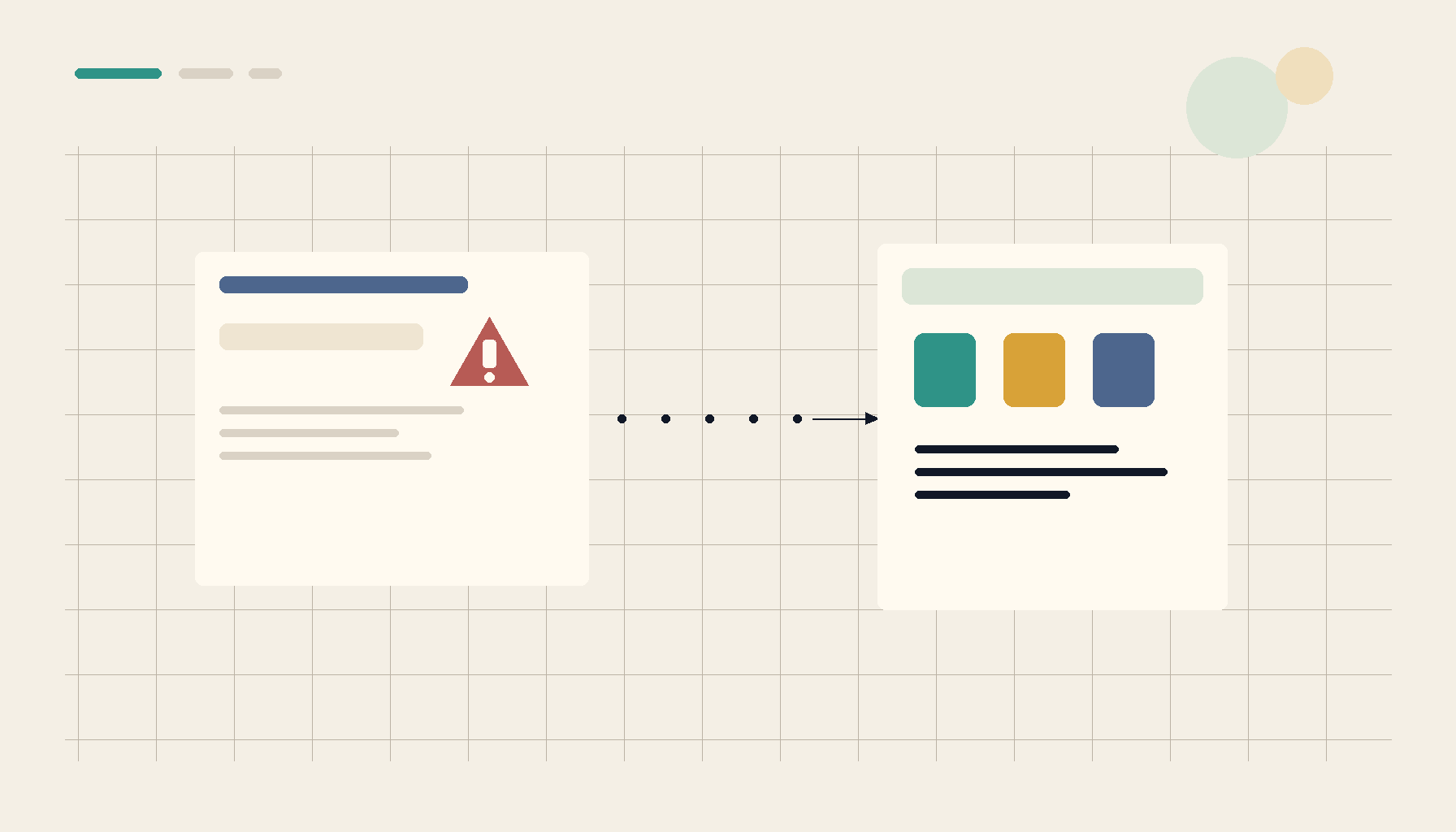
A common scenario: you decommission an older Proxmox VE host and decide to repurpose it as a dedicated PBS node. The machine has a single 7 TB hardware RAID device — plenty of space. You boot the PBS installer, accept the defaults, and the installer happily takes the whole disk for the OS. Installation finishes cleanly. Then you open the datastore creation dialog and realize the installer has left no usable free space. LVM has claimed the volume group, the partition table has no unallocated room, and every tool you reach for — fdisk, GParted, the GUI wipe button — either refuses or gives you a clean device that is now missing its OS.
The fundamental issue is that the PBS installer, like the PVE installer, targets a single device and allocates it fully by default. On a machine with multiple disks this is fine — install to a small SSD, leave the spinning drives for data. On a machine with one large device, the installer gives you no obvious prompt to reserve space for a datastore partition.
What the installer actually creates
When PBS installs to a disk it lays down:
- A small EFI or BIOS boot partition
- A swap partition
- A root filesystem partition (typically ext4)
- An LVM volume group that fills the remainder
The LVM volume group is the trap. PBS is aware of LVM and will happily use a logical volume or a raw partition as a datastore, but the GUI wipe operation that prepares a datastore disk wipes the entire device, including the partition that holds /. You cannot wipe your own root out from under yourself — the button greys out or errors — and you should not try.
Attempting to resize the LVM volume group from a running system to free space for a new partition requires shrinking the root logical volume while it is mounted, which is not supported for ext4 without a live environment.
How to partition correctly before you install
The fix is to plan the layout before the installer runs, not after.
Option 1 — Use a separate disk for the datastore. If you can add any secondary drive — even a modest SSD — install the OS there and dedicate the 7 TB device entirely to PBS datastore use. This is the cleanest architecture and matches how PBS is designed to be deployed.
Option 2 — Pre-partition the target disk manually. Boot a live environment (Debian live ISO works), use parted or fdisk to create two partitions: one sized for the OS (64–128 GB is comfortable for PBS), one for the datastore. Then boot the PBS installer, point it at the first partition (you may need to select "advanced" options in the installer), and after install create the datastore on the second partition. Note that some PBS installer versions handle this poorly; test in a VM first if the hardware allows it.
Option 3 — Reinstall with a custom LVM layout. The PBS installer's advanced mode lets you set the size of the root logical volume. Set it to 64 GB, leave the remaining space in the volume group unallocated, and after installation create a new logical volume for the datastore. PBS can use an LV directly as a datastore if you format it with the right filesystem — ZFS or ext4 both work, but ZFS is preferred for its data integrity features.
What does not work reliably:
- Resizing the root LV online to free space
- Using
GPartedfrom within the running PBS system to shrink its own partition - The GUI "Wipe" button on a disk that holds the running OS
Recovery if you are already stuck
If you have already installed PBS and the disk is fully allocated, your options narrow:
Boot a Debian/Ubuntu live ISO from USB. From there you can use
lvresize --resizefs -L 64G /dev/pbs-data/rootto shrink the root LV, thenlvextendorpvcreate/vgextendto carve out space for a second LV. This is safe if done carefully but requires shrinking an unmounted filesystem — boot the live ISO, do not mount the root partition read-write before resizing.Reinstall and start over. If the PBS node has not yet stored any real backups, reinstalling with a corrected partition layout costs almost nothing. Document your PBS realm and user configuration first (
/etc/proxmox-backup/holds most of it), back up/etc/network/interfacesand your datastore paths, then wipe and reinstall.Add an external datastore. If adding a second disk is possible, do that and leave the single-disk layout as-is for the OS. A USB 3.0 or eSATA drive is not ideal for production backups but works for a lab or low-frequency off-site target.
For ongoing visibility into your backup jobs, running services, and disk usage across nodes, a tool like ServerCompass lets you see all your running services at a glance — useful when you are managing PBS alongside PVE and want a quick health check without SSH-ing into each box.
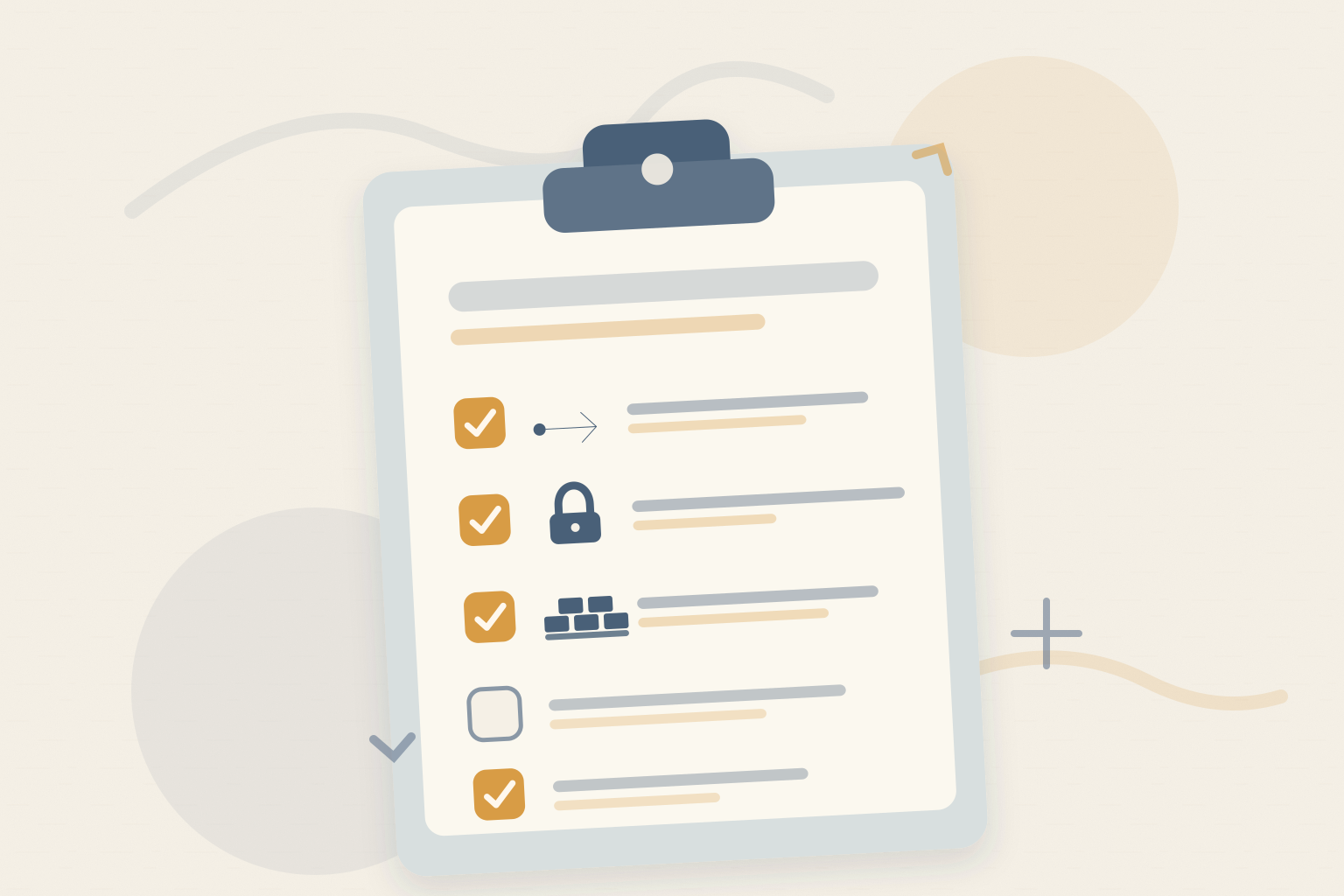
Checklist
- Plan partition layout before installer runs — decide OS partition size and datastore partition size in advance
- Prefer two physical disks — one for OS, one dedicated to PBS datastore
- Use the installer's advanced mode to set a bounded root LV size if only one disk is available
- Leave LVM space unallocated during install so you can create a datastore LV post-install without resizing
- Never rely on the GUI Wipe button to reclaim space on the disk the OS is running from
- Boot a live ISO for recovery — shrink the root filesystem only when it is unmounted
- Document PBS config files (
/etc/proxmox-backup/) before any reinstall - Test the layout in a VM first if the target hardware is inconvenient to rebuild