Immich newcomers need a library-ownership plan before importing cloud photo archives
Getting Immich running is only the first step — before you import years of Google Drive, OneDrive, or iCloud photos, you need a clear plan for which folders Immich owns, where the data actually lives on disk, and how the rest of your NAS fits into the picture. Skipping this step costs weeks of reorganization or, worse, accidental data loss.
Getting Immich running is only the first step — before you import years of Google Drive, OneDrive, or iCloud photos, you need a clear plan for which folders Immich owns, where the data actually lives on disk, and how the rest of your NAS fits into the picture. Skipping this step costs weeks of reorganization or, worse, accidental data loss.
The question nobody asks before hitting Import
Most new Immich threads follow the same pattern. Someone gets the containers up, opens the web UI, and immediately wants to pull in a decade of vacation photos from Google Drive and OneDrive. The question they ask is usually "how do I import these folders?" but the question they actually need to answer first is "who owns these files after the import?"
Immich has a specific model for library ownership. There are two kinds of libraries: the default upload library (Immich manages the files, moves them into its own folder structure under the upload path) and external libraries (Immich indexes files in a folder you control, but does not move or copy them). These two modes have very different consequences for your NAS layout, your backup strategy, and your ability to browse files outside of Immich.
If you drop 50,000 vacation photos into an Immich-managed upload library, Immich reorganizes them by date into its own hierarchy. Your original folder names — "Bali 2019", "Wedding June 2021" — disappear from the filesystem. Immich preserves the album metadata inside its database, but if you ever need to access those files without Immich running (say, during a migration or a database restore), you are navigating a flat date-based tree instead of the structure you built over years.
External libraries solve this, but they require you to pre-organize the data on your NAS before Immich ever touches it.
Splitting Docker state from NAS library data
On a NAS setup — a UGREEN, Synology, or any other box running Docker — the most common mistake is letting Immich's upload path land on the same SSD that runs the Docker volumes. That drive is optimized for random I/O and container state, not for storing 200,000 photos. The library data belongs on the spinning-disk array where you have capacity and redundancy.
A clean split looks like this:
- Docker volumes (database, Redis, model cache, thumbnails, encoded video): SSD, fast random I/O, relatively small.
- Library data (originals): NAS array, large sequential reads, backed up to an offsite target.
In your docker-compose.yml, this means the UPLOAD_LOCATION environment variable points to a mount on the array, not to a subfolder next to postgres-data. If you use external libraries, the external path also needs to be a bind-mount into the container pointing at the array.
This distinction matters even more when you are migrating a family off Google Photos. One real case took nearly a year: the user ran immich-go to pull the Google Takeout archives, let Immich deduplicate and validate everything, ran parallel backups, and only deleted 200,000 cloud items after all of that was confirmed. During those months, both the Immich library and the original cloud archive existed simultaneously. That requires disk capacity planning before the first import, not after.
Phone backup, mobile app, and the sync boundary
Immich's mobile app does continuous backup from your phone. That is a separate data stream from the cloud archive import, and it lands in the managed upload library by default. Before you configure the app on every family member's device, decide:
- Should phone backups land in the same upload library as imported cloud photos, or in a separate library per person?
- If you have multiple family members, does each person get their own Immich user account, or is everything under one account?
- What is the deduplication story if someone's OneDrive already contains their phone backup from the last three years?
Immich deduplicates by hash, so if the same file exists in a Takeout export and a phone backup, it will not create a duplicate asset. But this only works if both files come through the same Immich instance. If you import the OneDrive archive first and then enable phone backup, the overlap will be caught. If you run separate Immich instances per person (a pattern some families use for privacy), deduplication does not cross instance boundaries.
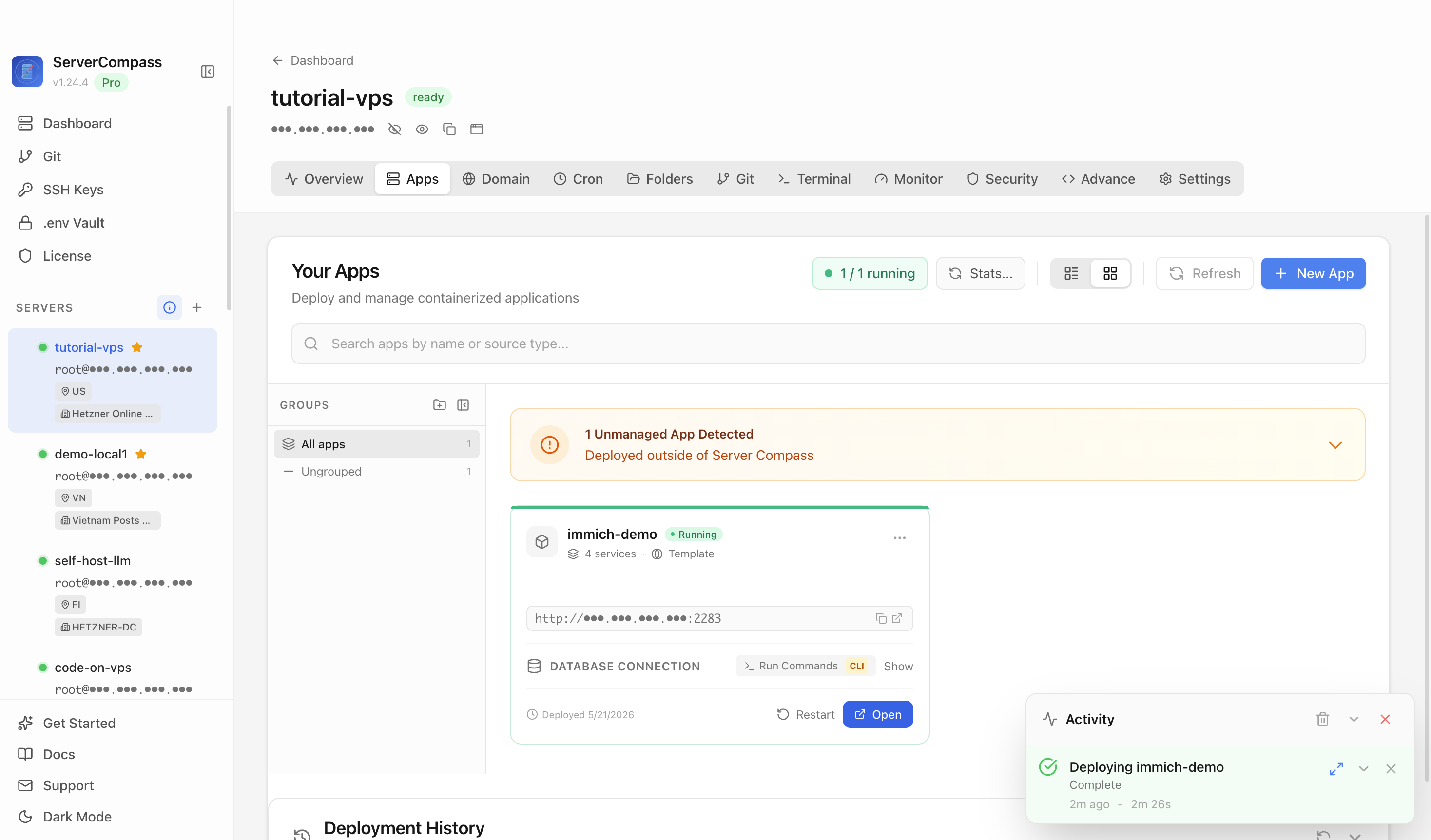
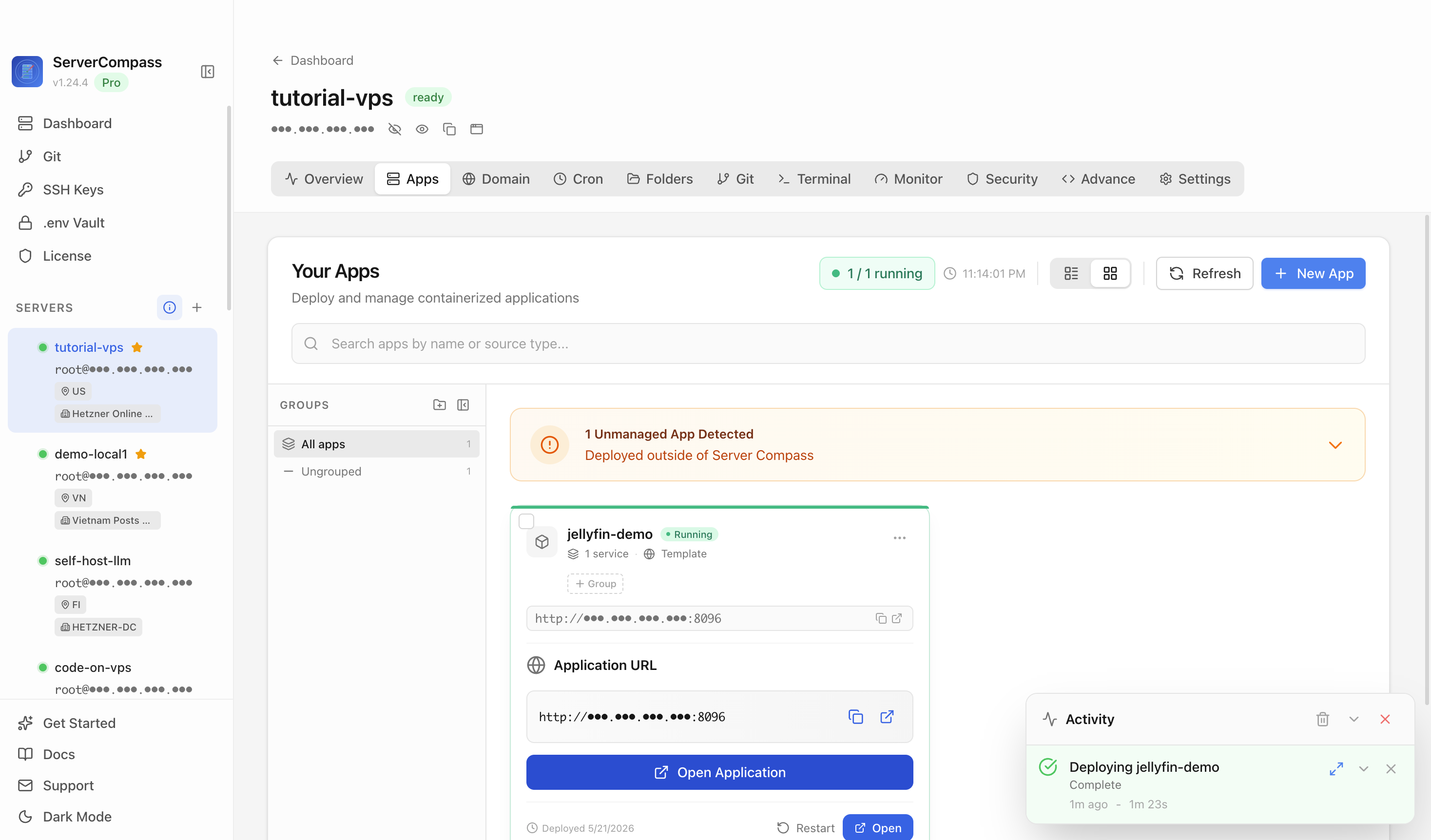
A tool like ServerCompass lets you see all your running services at a glance — useful when you have multiple Immich instances, a separate database container, and a backup agent all running on the same host and you need to confirm everything is healthy before kicking off a large import.
Preserving folder structure with external libraries
If folder names matter to you — and for vacation archives and family event collections they usually do — external libraries are the right choice for your imported cloud data. The workflow is:
- Copy the Google Drive and OneDrive content to your NAS array, preserving the folder structure exactly as it came out of the cloud export.
- Mount that path into the Immich container as a read-only bind mount.
- Add it as an external library in Immich and run the initial scan.
- Immich indexes the files and makes them searchable and browsable in the UI, but does not move or rename anything.
The tradeoff is that Immich cannot write metadata back to the originals. If you edit a description or add people tags in Immich, that data lives in the Immich database, not in the file. This is fine as long as your Immich database is included in your backup plan — and it must be, because losing the database means losing all your tags, albums, and facial recognition data even if the original files are intact.
For ongoing phone backups where you want Immich to manage the files directly, keep the managed upload library. For historical archives where folder structure matters, use external libraries. Many users end up running both.
Checklist
- Decide before importing: managed upload library (Immich owns file layout) vs. external library (you own the folders)
- Put Docker volumes (database, thumbnails, model cache) on the SSD; put library originals on the NAS array
- Plan your
UPLOAD_LOCATIONbind mount to point at the array, not the container SSD - If preserving folder names matters, copy cloud exports to the NAS first, then add as an external library
- Map out deduplication boundaries — single Immich instance deduplicates across all imports; separate instances do not cross-deduplicate
- Decide on per-user accounts before enabling the mobile app on family members' phones
- Keep the Immich Postgres database in your backup plan — it holds albums, tags, and people data that cannot be reconstructed from the files alone
- Run the cloud archive and the new Immich instance in parallel long enough to validate before deleting anything from Google Photos, OneDrive, or iCloud