Beginner homelabs need an app-first plan before buying NAS, DAS, and always-on mini-PC hardware
Most homelab beginners start by browsing hardware — NAS boxes, mini-PCs, DAS enclosures — before they have a clear picture of what apps they actually want to run. Locking down your app list first changes every hardware decision that follows.

Most homelab beginners start by browsing hardware — NAS boxes, mini-PCs, DAS enclosures — before they have a clear picture of what apps they actually want to run. Locking down your app list first changes every hardware decision that follows.
Start with the app list, not the spec sheet
The most common pattern among people setting up their first homelab is anchoring on hardware. They see a deal on a Buffalo NAS or an N150 mini-PC and start reverse-engineering an app list to justify the purchase. This almost always leads to either over-buying or hitting a wall later — like discovering a NAS with a slow ARM SoC can't transcode Jellyfin streams in real time, or that Pi-hole needs a constantly-running host that a NAS might not provide cleanly.
The better approach: write down every app you want to run before pricing a single device. Common beginner combinations look like this:
- Nextcloud — file sync and sharing, needs persistent storage and reasonable RAM
- Jellyfin — media server, needs CPU or GPU headroom for transcoding
- Pi-hole — network-level ad blocking, needs an always-on low-power host
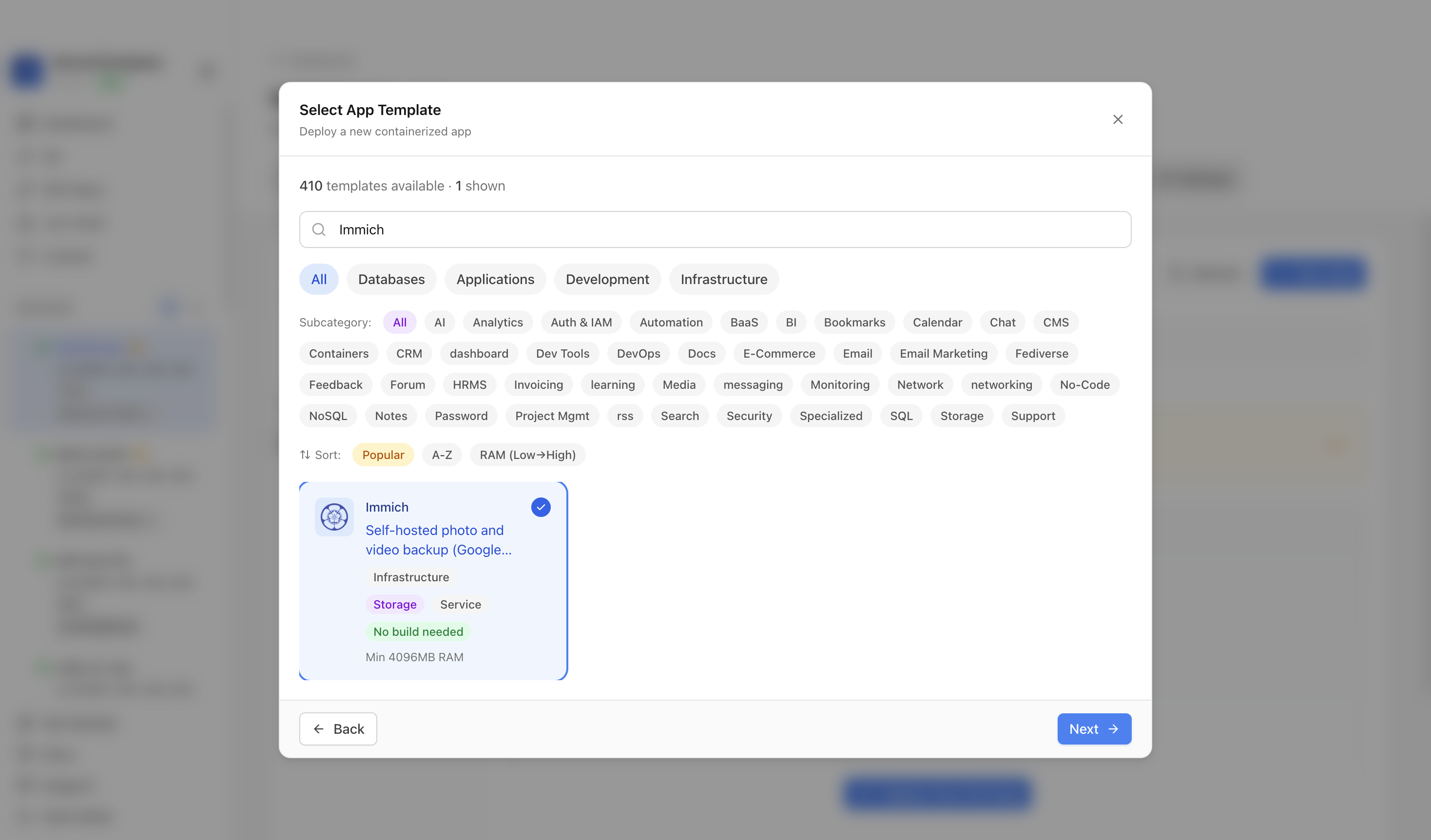
- Immich — photo library, needs storage, RAM, and optional GPU for ML features
Those four apps alone tell you a lot. Pi-hole and Nextcloud can coexist on modest hardware. Jellyfin and Immich together push you toward something with more CPU and expandable storage. Once the list exists, the hardware shopping becomes mechanical.
What an old PC can actually do
Running Nextcloud, Jellyfin, and Pi-hole on an old desktop PC is a completely reasonable starting point — in many cases it's the best one. Old x86 hardware almost always outperforms purpose-built NAS boxes for compute-heavy tasks. An old i5 or i7 with 8–16 GB of RAM will handle Jellyfin transcoding without breaking a sweat, whereas a NAS running a quad-core ARM chip might stutter on a single 4K stream.
The practical concerns with an old PC are power draw and noise. A full desktop pulling 65–100 W around the clock adds up on an electricity bill compared to a mini-PC at 10–15 W. If your app list is light — Pi-hole, Nextcloud for a single user, and occasional Jellyfin use — the power argument for a mini-PC gets stronger. If you're running Jellyfin for a household and want Immich for ML-assisted photo search, the old PC's raw power may be worth the wattage.
Storage is the other consideration. Old PCs usually have multiple SATA bays, which gives you room to grow. Before buying a separate NAS or DAS, check how many drives you can actually fit in the case you already have.
Always-on mini-PCs and DAS expansion
An N150 (or similar low-power Intel N-series) mini-PC is a popular anchor for an always-on hub. These machines sip power, run a full Linux stack, and handle Pi-hole, Nextcloud, and light Jellyfin work without issue. The sanity-check question to ask before committing: does this chip have enough headroom for everything I want to run simultaneously?
Mini-PCs typically ship with one or two M.2 slots and one 2.5-inch bay — enough for an OS drive and one data drive. When your media library or photo archive outgrows that, a DAS (Direct Attached Storage) enclosure connects via USB 3 or Thunderbolt and adds several drive bays without replacing the host. The compatibility check here is straightforward: confirm the DAS enclosure supports the drive form factor (3.5-inch vs 2.5-inch), verify the interface speed matches your use case, and format the drives in a filesystem your OS handles natively (ext4 on Linux, which is the standard for most self-hosted stacks).
For Jellyfin specifically, the drives don't need to be anything exotic — standard 7200 RPM spinning disks handle sequential media reads without issue. The bottleneck is almost always CPU (for transcoding) or network (for simultaneous streams), not drive speed.
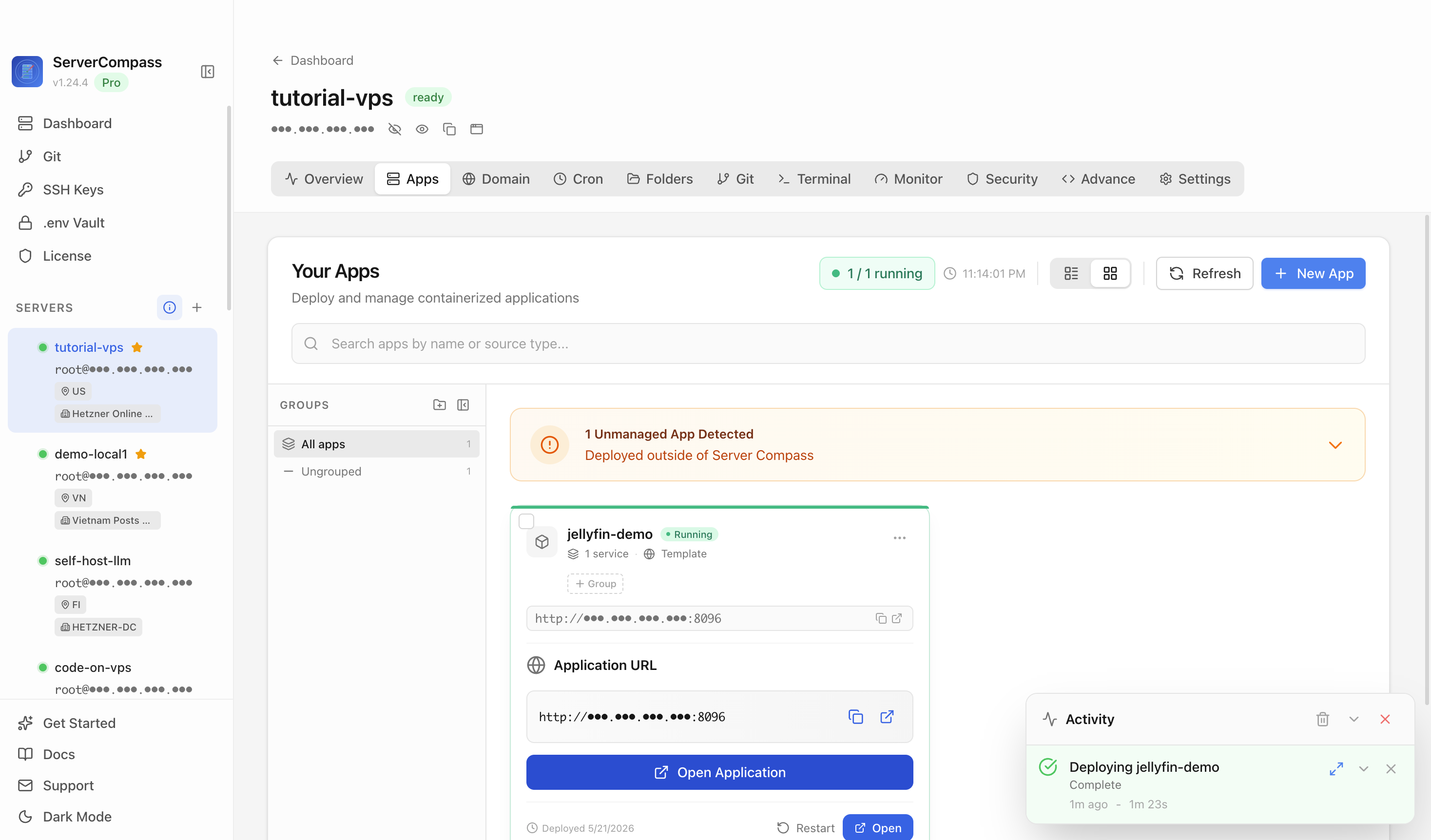
Once you have multiple services running, keeping track of what's healthy gets harder. ServerCompass lets you see all your running services at a glance — CPU, memory, and uptime per process — without SSH-ing into the box every time you want to check on something.
Immich and Buffalo NAS: matching the hardware to the workload
Immich is a self-hosted Google Photos alternative with a solid feature set, but it's not a lightweight app. A minimal Immich install needs around 2–4 GB of RAM for the app stack alone. Optional ML features (face recognition, CLIP-based search) add GPU or CPU overhead on top of that.
A Buffalo NAS running a proprietary OS (like Buffalo's NAS Navigator stack) is not the right host for Immich. These devices are built for SMB file sharing, not running Docker containers with ML workloads. If you already have a Buffalo NAS for storage, the practical setup is to run Immich on a separate compute host — the old PC or the mini-PC — and point Immich's library at the NAS over NFS or SMB.
If you're starting from scratch and Immich is the primary use case, a small x86 machine running Debian or Ubuntu with Docker is the path of least resistance. A used mini-PC or SFF desktop in the $100–200 range covers the compute. Storage can be internal or a DAS once the library grows.
Network experience matters less than people think at the beginner stage. You need a router that supports static DHCP leases (so your server always gets the same IP) and basic port forwarding if you want remote access. That's a five-minute task on almost any consumer router. The Immich documentation walks through the rest.
Checklist
- Write down every app you want to run before evaluating any hardware
- Map each app to its CPU, RAM, and storage requirements — identify the most demanding one
- Check whether an old PC already in hand covers the requirements before buying new hardware
- For an N150 or similar mini-PC, verify it can handle all target services running simultaneously
- When expanding storage, confirm DAS drive compatibility (form factor, interface, filesystem) before purchasing
- For Immich or other ML-assisted apps, check RAM requirements and whether the host supports Docker
- Do not run Immich or Jellyfin directly on a NAS running proprietary firmware — use a separate compute host and mount the NAS storage
- Once services are running, use a dashboard like ServerCompass to monitor health without constant SSH sessions