How to Deploy a Docker App to a VPS (From Image to HTTPS)
Deploy any Docker image to a VPS with HTTPS, persistent volumes, and a repeatable workflow. The foundation for everything else.
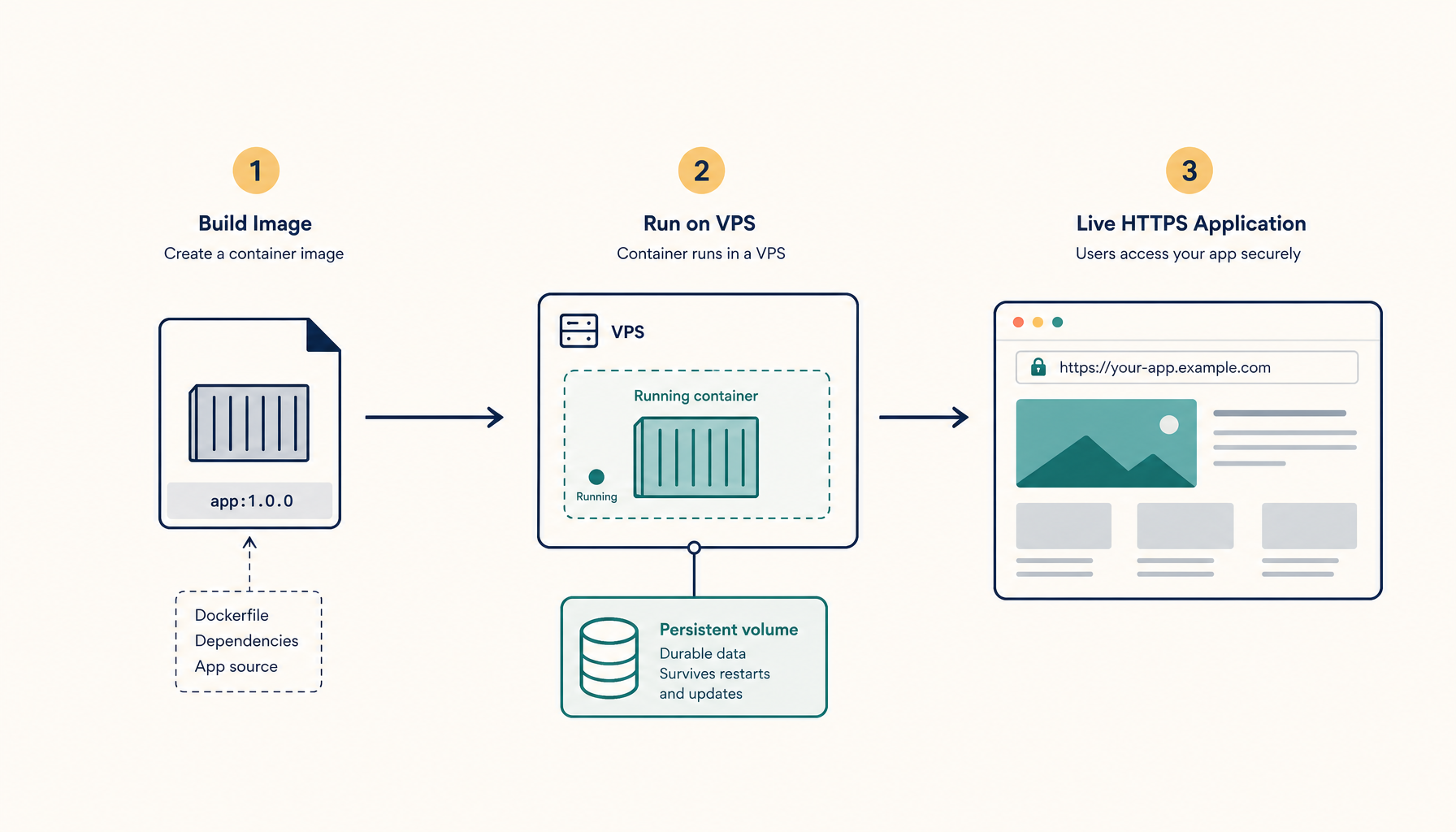
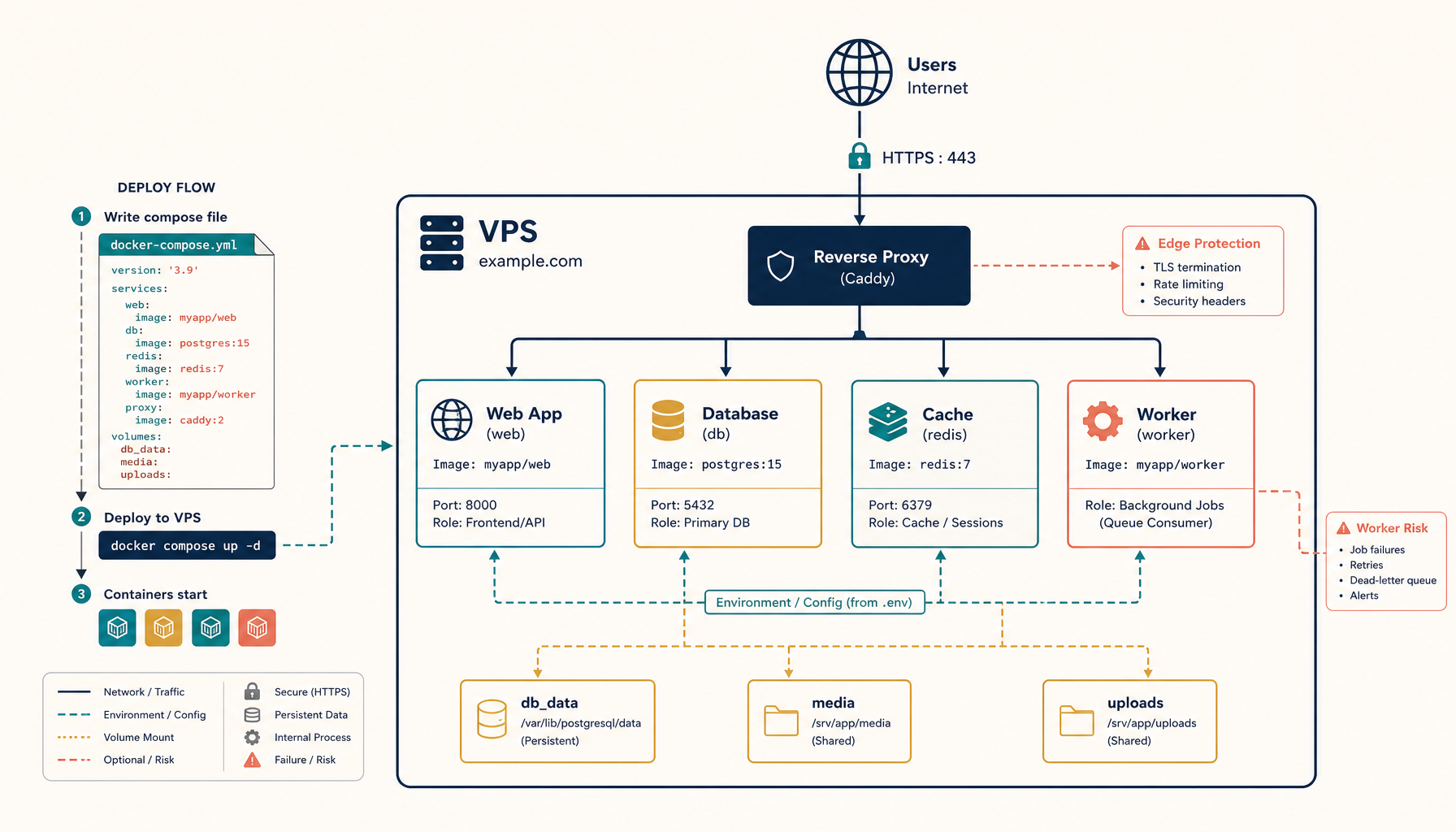
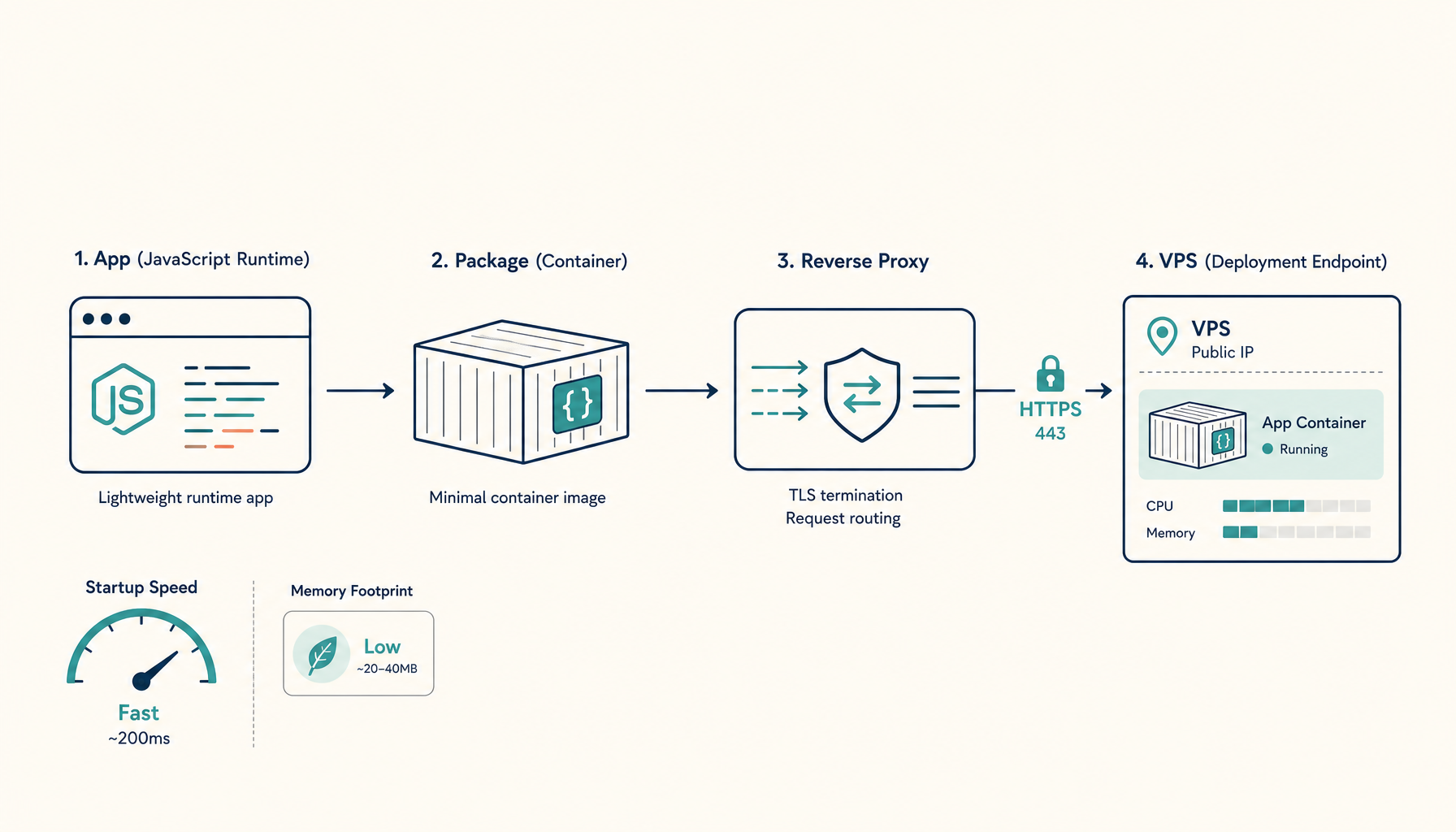
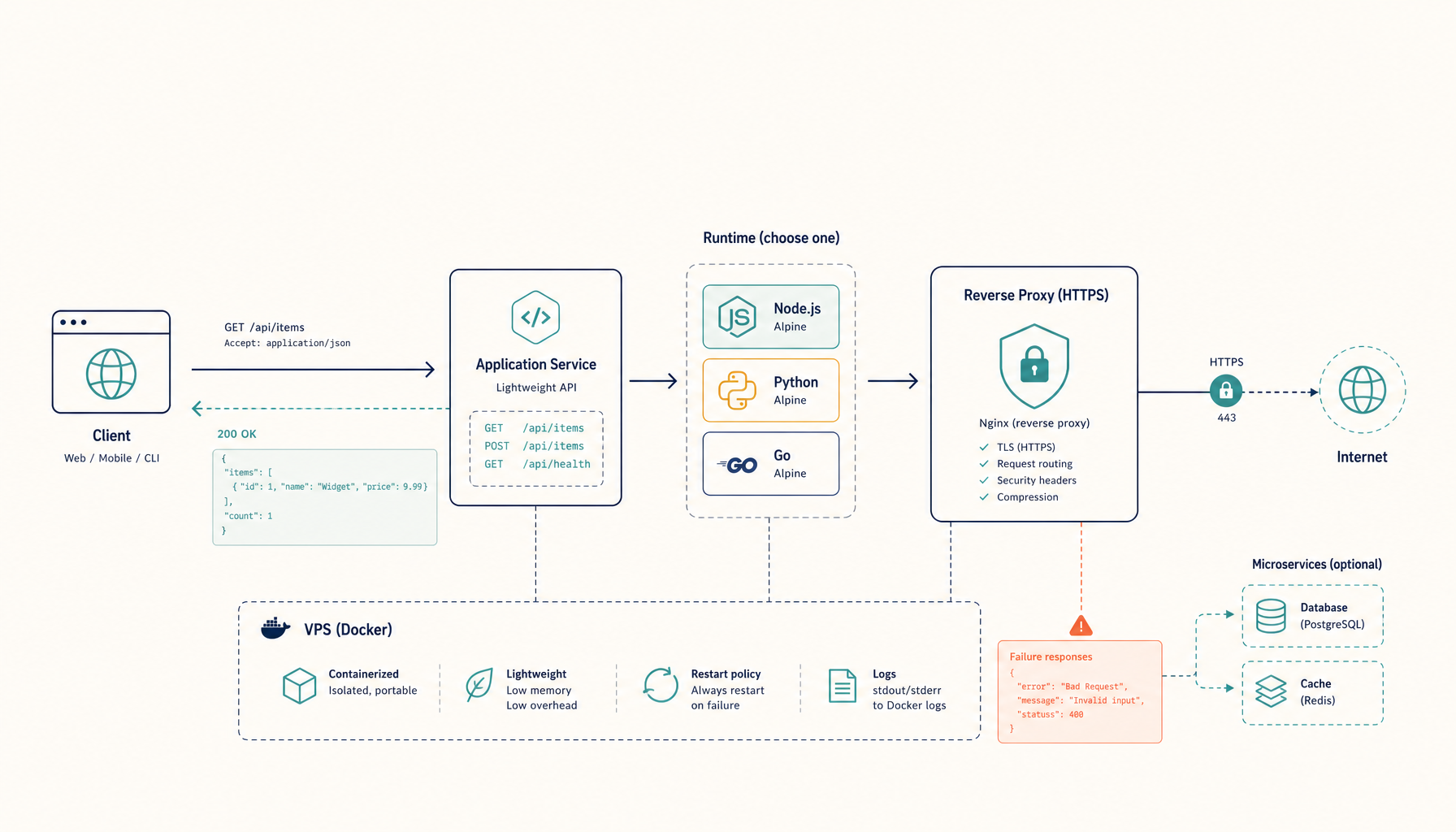
You are going to deploy a Docker container to a VPS with HTTPS and a reverse proxy:
- pull or build any Docker image
- route traffic through Traefik
- automatic SSL certificates
- a deploy workflow that works for any containerized app
This is the foundation. Once you understand this pattern, deploying any Docker image becomes the same three commands.
What you will have at the end
https://your-domain.comserving your containerized app- Traefik handling SSL termination and routing
- A pattern you can repeat for any Docker image
Step 1: Install Docker on your VPS
SSH into your server and run:
sudo apt update && sudo apt upgrade -y
curl -fsSL https://get.docker.com | sh
sudo usermod -aG docker $USER
newgrp docker
Verify the installation:
docker --version
docker compose version
Step 2: Create the app directory structure
mkdir -p ~/apps/myapp
cd ~/apps/myapp
Each app gets its own directory. This keeps configs isolated and makes debugging straightforward.
Step 3: Create a docker-compose.yml with Traefik
Create docker-compose.yml:
services:
  traefik:
    image: traefik:v2.11
    command:
      - --providers.docker=true
      - --providers.docker.exposedbydefault=false
      - --entrypoints.web.address=:80
      - --entrypoints.websecure.address=:443
      - --entrypoints.web.http.redirections.entrypoint.to=websecure
      - --entrypoints.web.http.redirections.entrypoint.scheme=https
      - --certificatesresolvers.letsencrypt.acme.tlschallenge=true
      - [email protected]
      - --certificatesresolvers.letsencrypt.acme.storage=/letsencrypt/acme.json
    ports:
      - 80:80
      - 443:443
    volumes:
      - /var/run/docker.sock:/var/run/docker.sock:ro
      - letsencrypt:/letsencrypt
    restart: unless-stopped

  app:
    image: nginx:alpine  # Replace with your image
    restart: unless-stopped
    labels:
      - traefik.enable=true
      - traefik.http.routers.app.rule=Host(`your-domain.com`)
      - traefik.http.routers.app.entrypoints=websecure
      - traefik.http.routers.app.tls=true
      - traefik.http.routers.app.tls.certresolver=letsencrypt
      - traefik.http.services.app.loadbalancer.server.port=80

volumes:
  letsencrypt:
Replace:
your-domain.comwith your actual domain[email protected]with your email for Let's Encryptnginx:alpinewith your Docker image- Port
80in loadbalancer with the port your app listens on
Step 4: Add environment variables and volumes
For apps that need configuration, create a .env file:
# .env
DATABASE_URL=postgres://user:pass@db:5432/myapp
SECRET_KEY=your-secret-key-here
NODE_ENV=production
Update your compose file to use it:
  app:
    image: your-image:latest
    env_file:
      - .env
    volumes:
      - ./data:/app/data  # Persist data outside container
    restart: unless-stopped
    labels:
      # ... traefik labels
Step 5: Deploy your application
docker compose up -d
Check that everything is running:
docker compose ps
docker compose logs -f app
Visit https://your-domain.com - you should see your app with a valid SSL certificate.
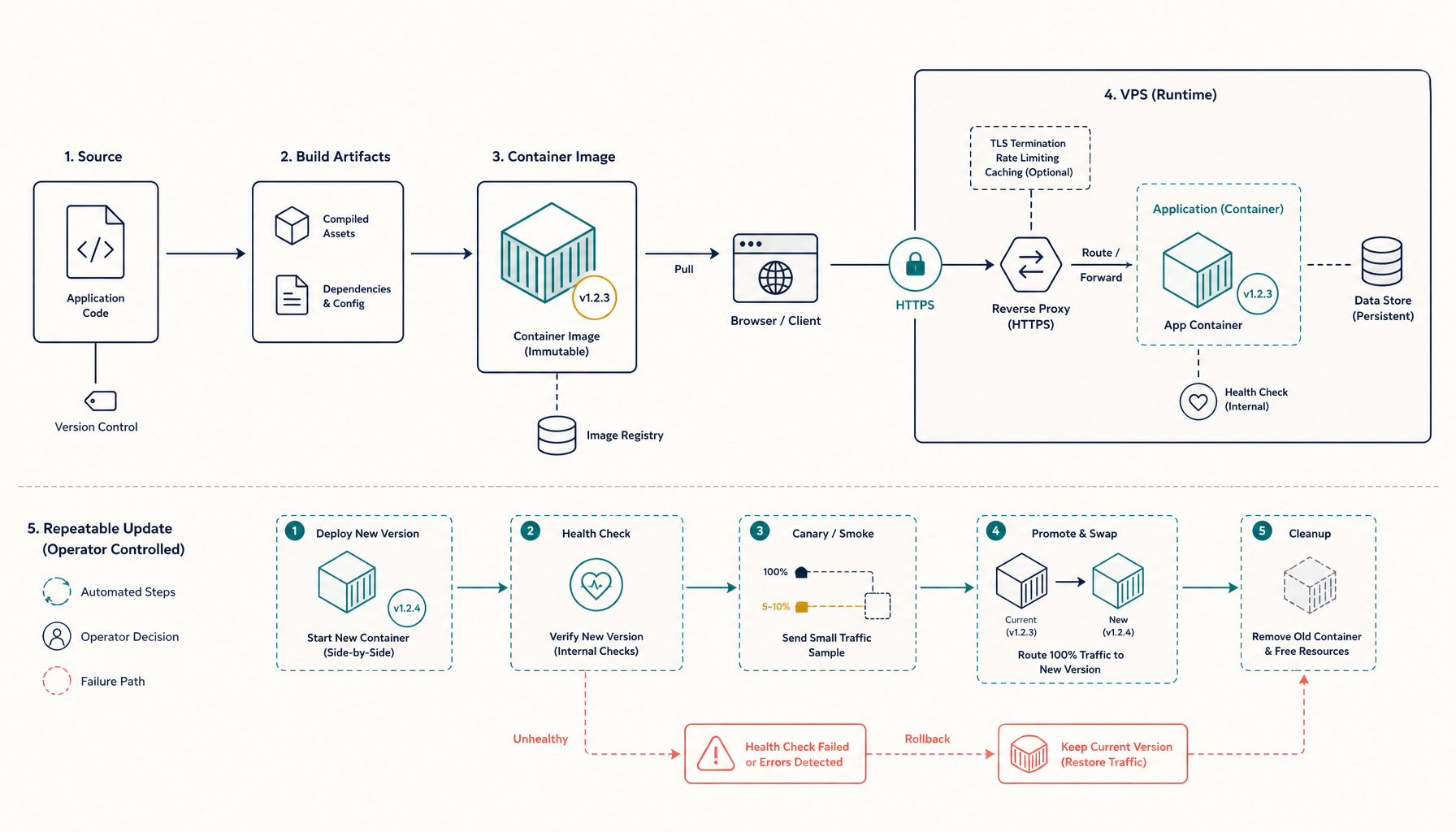
Step 6: Update workflow
Your update loop is simple:
docker compose pull        # Get latest image
docker compose up -d       # Recreate with new image
docker image prune -f      # Clean old images
For images you build locally:
docker compose up -d --build
Troubleshooting
SSL certificate not issued
The most common issues:
- DNS not propagated yet. Check with
dig your-domain.com - Ports 80/443 blocked by firewall. Open them:
sudo ufw allow 80,443/tcp - Rate limited by Let's Encrypt. Check Traefik logs for the exact error
docker logs $(docker ps --filter name=traefik -q) 2>&1 | grep -i acme
Container keeps restarting
Check the logs for the actual error:
docker compose logs app --tail 50
Common causes:
- Missing environment variables
- Port already in use
- Insufficient memory (check with
free -h)
502 Bad Gateway
This means Traefik cannot reach your app:
- Verify your app is listening on the port specified in
loadbalancer.server.port - Check if the container is healthy:
docker compose ps - Ensure the app binds to
0.0.0.0, not127.0.0.1
Permission denied on volumes
Docker runs as root by default. If your app runs as a non-root user:
sudo chown -R 1000:1000 ./data
Or specify the user in your compose file:
  app:
    image: your-image
    user: "1000:1000"
Internal links (recommended next reads)
- Tutorial: Deploy with Docker Compose - multi-container setups
- Tutorial: Deploy Next.js - framework-specific example
- Comparison: Vercel Alternatives
- ServerCompass: One-click Docker deploys
Related in the StoicSoft network
If you work in AI-assisted coding, shared terminal sessions, or agent-driven shell workflows like the ones above, 1devtool is the StoicSoft network's tool for safer AI-assisted terminal work — shared sessions with auditing, preflight policy, and tiered model routing built in.
From across the StoicSoft network
Hand-curated reads on the same topic from sister sites in the StoicSoft family.