WordPress self-hosters still lack a boring local-to-production deploy and backup handoff
WordPress deployment between local and production is still an unsolved problem for most self-hosters — database state, uploads, and template changes are all tightly coupled, making any push feel risky. This guide covers the practical steps to make deploys and backups boring in the good way.

WordPress deployment should be routine, but for most self-hosters it still feels like defusing a bomb every time you push a change from local to production.
Why WordPress Deploys Feel Unsafe
The root problem is coupling. When you build a WordPress site locally, the state you're working with is split across multiple places at once: the database holds your content, options, and shortcode definitions; the uploads/ directory holds media; your theme directory holds CSS and template files; and installed plugins can scatter configuration across all three. None of these move together cleanly when you try to push to production.
A developer who has wrestled with this describes it clearly: a simple theme change might depend on a shortcode registered by a plugin, a CSS variable set in the Customizer (stored in the database), and an image in uploads — all of which are out of sync the moment you rsync your files. Production gets the file, but not the context the file expects.
This is not a bug in WordPress. It is a consequence of how WordPress was designed — as a system where the database is the site, not just a backing store. The implication for deployment is that you cannot treat it like a stateless application. You need a strategy that handles both the filesystem and the database, in the right order, every time.
A Reliable Local-to-Production Push
The practical approach is to separate what you deploy from what you sync, and to never overwrite production data you haven't explicitly migrated.
Files you should deploy from version control:
wp-content/themes/your-theme/wp-content/plugins/(only plugins you manage, not ones installed via the admin)- Any custom
wp-config.phpadditions (never the credentials themselves)
Things you should migrate explicitly, not overwrite:
- The database — export from local with WP-CLI (
wp db export), search-replace the local URL for the production URL (wp search-replace), then import on production - The
uploads/directory — sync it separately with rsync or a plugin like WP Migrate, and only when you know new media was added
The key habit: treat every deploy as two separate operations. First push the code via git or rsync. Then decide whether a database migration is needed for this change. Most theme and CSS changes need no database work at all. New custom fields, option-dependent features, and Customizer changes do.
For the database migration step, always run it on a staging environment first if one exists. If you do not have staging, at minimum take a database dump before the migration and keep it somewhere you can restore from in under five minutes.
Backups That Actually Protect You
A question that surfaces repeatedly in WordPress communities is deceptively simple: where should backup files live?
The wrong answer is: on the same server as the site. A disk failure, a botched deploy, or a ransomware attack takes both the site and the backup in one shot.
The correct answer is: offsite, versioned, and tested. In practice for a self-hoster, that means:
- Automated scheduled exports — WP-CLI makes this scriptable:
wp db export /backups/$(date +%Y%m%d).sql. Run this daily via cron. - Files backup — rsync
wp-content/uploads/to a remote destination on the same schedule. If your VPS provider offers snapshots, use those too — but as a supplement, not a replacement. - Offsite storage — push the exports to object storage (Backblaze B2, Cloudflare R2, or an S3-compatible bucket). A simple
rclone synccommand after each export handles this with minimal setup. - Retention policy — keep daily backups for 7 days, weekly for 4 weeks. Delete older ones automatically so storage costs don't grow unbounded.
Once backups are running, test them. A backup you have never restored from is a backup you do not actually have. Run a restore drill every few months on a staging or local environment.
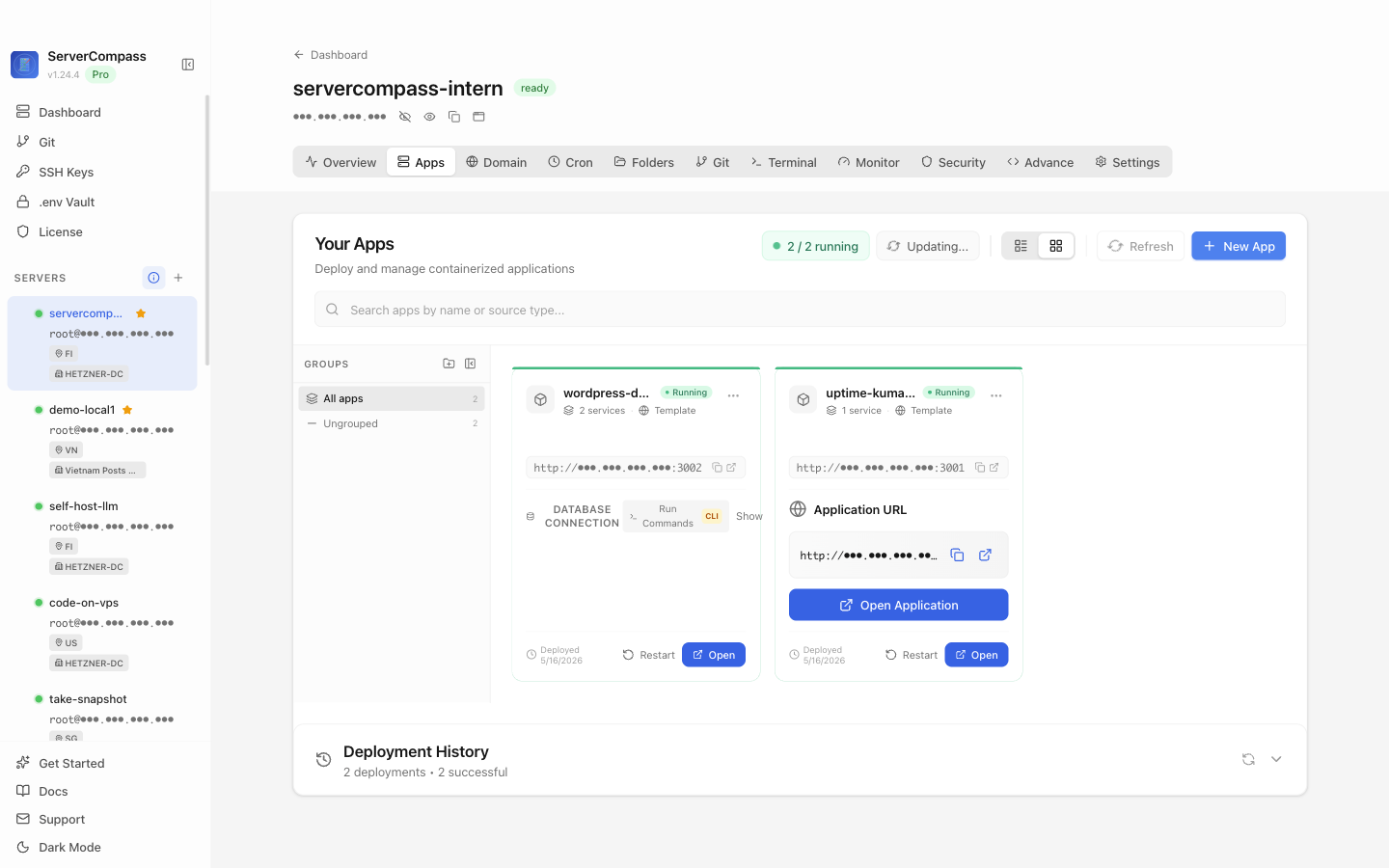
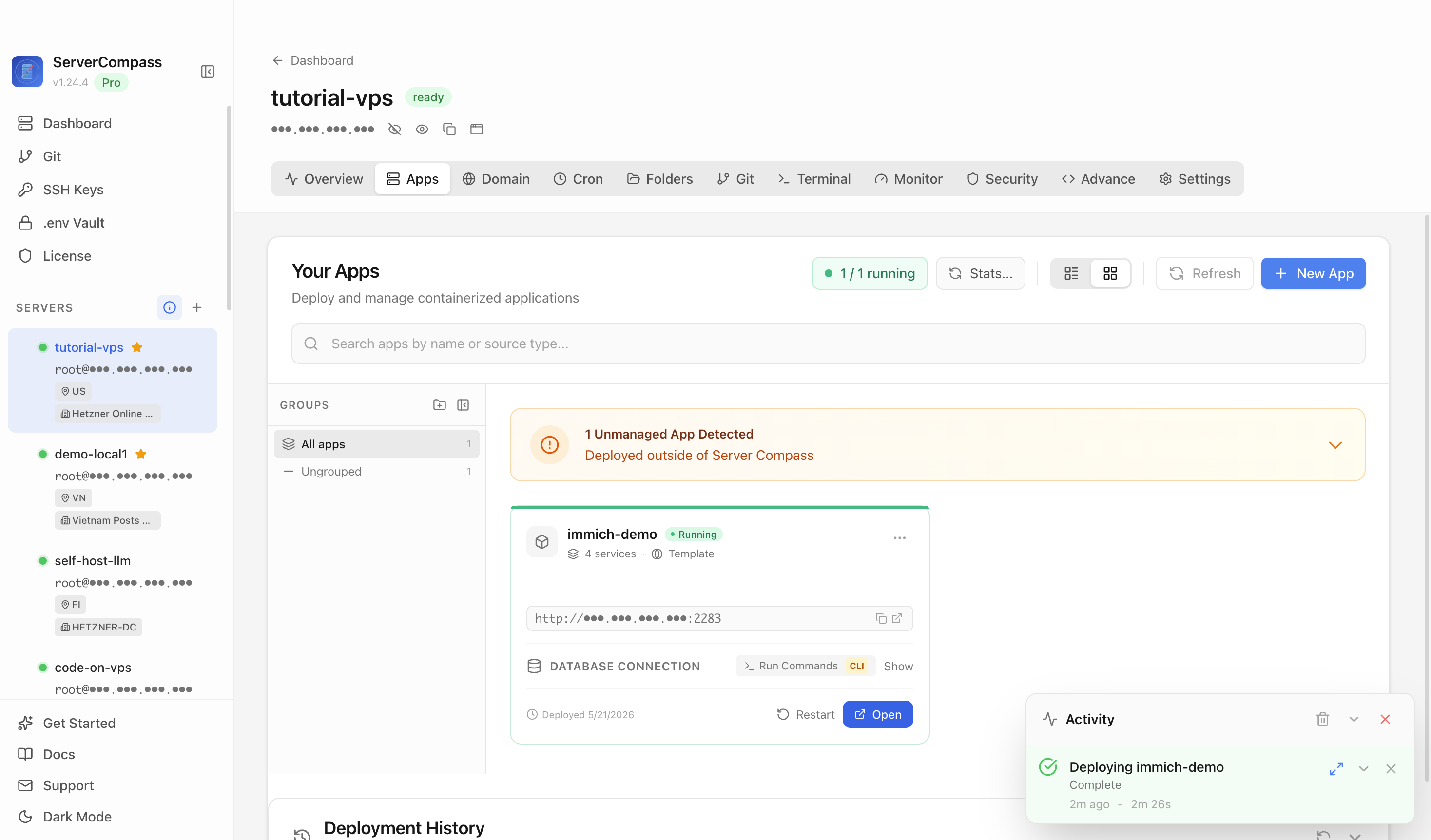
If you are running multiple WordPress sites on the same VPS, ServerCompass lets you see all your running services at a glance — useful for confirming that your backup cron jobs and WordPress processes are all healthy without SSHing into each server individually.
Recovering Ownership When a Third Party Holds the Site
One scenario that comes up more than it should: a client's site is locked behind a shady SEO company or a web agency that refuses to hand over credentials. The client cannot access wp-admin, the hosting control panel, or the domain registrar.
This is a server operations problem masquerading as a relationship problem. The resolution path depends on what access you still have:
If you have SSH or FTP access to the server: You can reset the WordPress admin password directly in the database. Connect to MySQL and run:
UPDATE wp_users SET user_pass = MD5('newpassword') WHERE user_login = 'admin';
Then immediately change the password again via wp-admin and rotate all API keys.
If you have control of the hosting account but not wp-admin: Most control panels (cPanel, Plesk, or a plain VPS with phpMyAdmin) give you direct database access. The same SQL above applies.
If the third party controls the hosting account and the domain: This is the hardest case. Contact the domain registrar directly — ICANN's transfer dispute process exists for this situation. For hosting, contact the provider's abuse or account ownership team with proof of original ownership (invoices, original registration emails, business documents).
The preventive measure is straightforward: any WordPress site you are responsible for should have you listed as the registrar account owner, and the hosting account should be under your control or your client's direct control, not a vendor's. Vendors get a login, not ownership.
Checklist
- Separate file deploys (git/rsync) from database migrations — never conflate the two into one rsync command
- Use
wp db exportandwp search-replaceto migrate the database, replacing local URLs with production URLs before import - Always take a database snapshot before any production migration, stored somewhere you can restore from quickly
- Run automated daily database exports via cron and sync them offsite with rclone to object storage
- Keep
wp-content/uploads/backed up separately on the same schedule as the database - Test restores on a staging or local environment at least quarterly — an untested backup is not a backup
- Keep domain registrar and hosting account ownership under the site owner's direct control, not a vendor's
- Use a tool like ServerCompass to monitor all services on your VPS and confirm backup cron jobs are running